
Intended audience: users
AO Easy Answers: 5.0
Overview
Filters allow data retrieved into Apps on the Dashboard to be refined or limited based on the values applied. Let’s say an App shows all customers available across all States in the USA. A configured filter could limit the data only to show those customers living in State = California, or customers who have requested to unsubscribe to a service, ie Unsubscribed = True. A user can create as many Filters as needed for a Dashboard, apply some values to the Filters, and even save the Filtered Views of the Dashboard for easy access.
Filters can be configured for Apps that have been added to a Dashboard from the Easy Answers Results page. Filters cannot be configured for Apps that have been created using the App Composer and separately added from the Dashboard page directly.
To get started with Dashboard Filters, open the Configure Filters entry in the Dashboard options menu. Filters can also be added for Sections on a Dashboard. See Manage Layout for details.
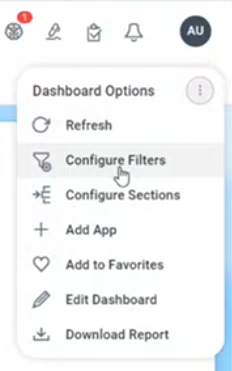
Configure Dashboard Filters
The Configure Filters dialog allows the user to configure the data properties to be used as Filters on the Dashboard. This includes a Display Name for the property, whether to always show the Filter, or only when an Advanced Filter criteria is configured, which Apps the Filter will impact when applied, and any Dependent Filters. The Apps selection is important as some Apps on a Dashboard may already have implicit Filters applied based on the underlying question, or it may be required to never change an App for consistency in reporting the data. See Viewing and Applying Filters on how to select and apply Filters.
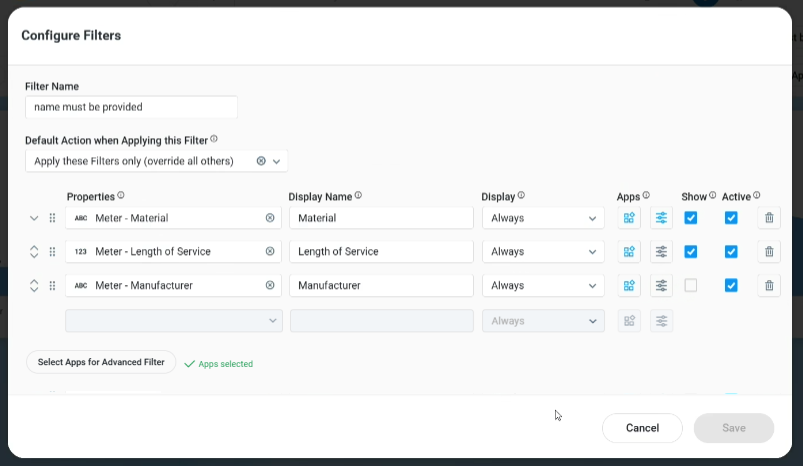
Properties
|
Labels |
UI |
Default |
Description |
|---|---|---|---|
|
Default Action when Applying this Filter |
Dropdown |
Apply these Filters only (override all others) |
Select how the Filters will be applied with the other Filters already present on the Dashboard. See Applying Dashboard, Section, and App Filters. |
|
Properties |
Dropdown w/Search |
|
The Properties dropdown allows the user to select a Topic and its Property to create a Filter for which to configure a Filter. Note: Each property configuration in the table can be moved up/down impacting the order in which the Filters will be shown on the Filter row. |
|
Value |
Text field |
|
The Value field allows the user to enter a Display Name for the selected data property. |
|
Display |
Dropdown |
Always |
The Display dropdown field provides the user options to determine when to display the Filter. Options are…
|
|
Apps |
Icon |
All |
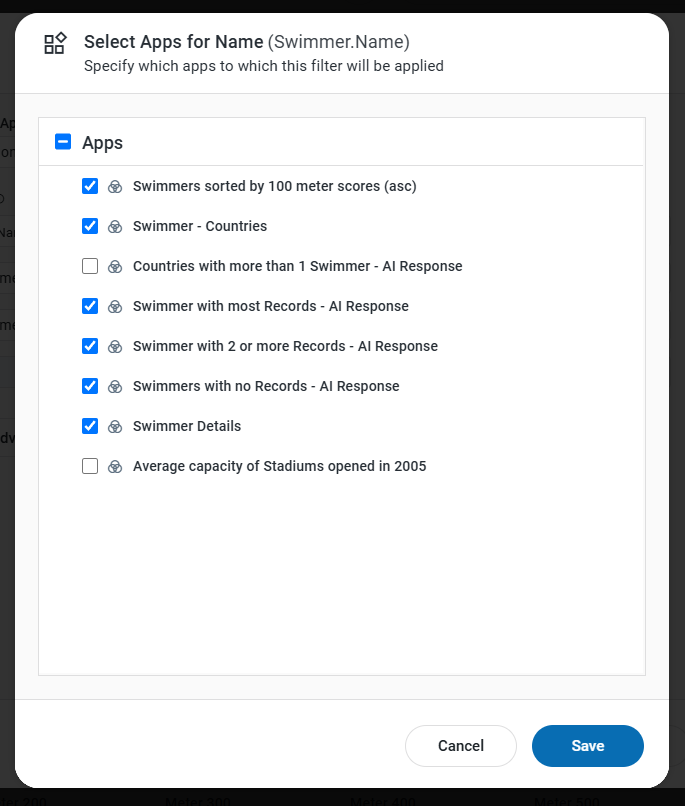
Opens a dialog to select from a list of available Apps on the Dashboard. Select/unselect the Apps that shall be impacted by the Filter being configured. Apps may be shown disabled/greyed out. These Apps are not eligible to be Filtered. See the Configuring Apps for Filters section below. |
|
Configure Filter Fields |
Icon |
None |
The Configure Filters Fields allow the user to further refine Filters for additional usability. See the Configuring Filters Fields section below. |
|
Show |
Checkbox |
Checked |
If checked, the Filter will appear in the list of Filters when the user selects to configure My Filters Settings - available from the Filter Row. Uncheck to hide the Filter from the user’s My Filters Settings dialog. |
|
Active |
Checkbox |
Checked |
If checked, the Filter will be active and available. Uncheck to suppress the Filter. This allows the Filter to be configured, but temporarily suppressed/hidden from all Filter Rows. This is valuable during testing/troubleshooting. |
|
Delete |
Icon |
|
Click the Delete icon to remove a configured Filter entry. |
Configuring Apps for Filters
Configuring apps for filters involves setting up specific criteria or parameters to control how the app processes and displays the data.
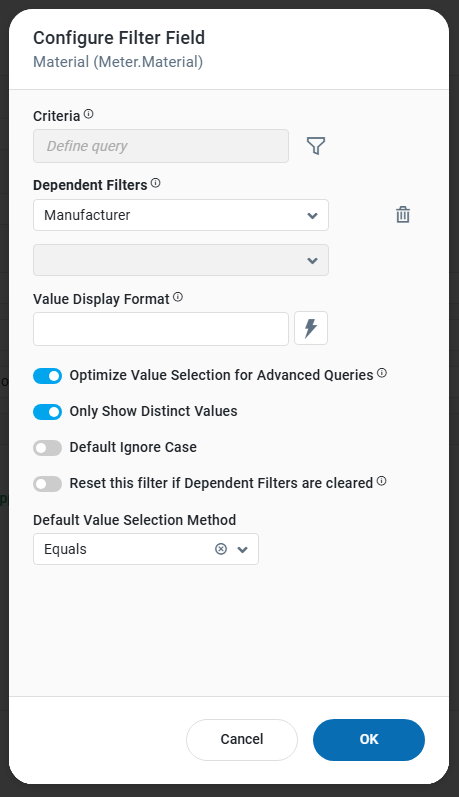
Configuring Filters Fields
The following options are available to enhance the usability of the Filters configured.
-
Criteria - enter one or more Criteria using the Query Builder to be applied to the user’s question.
-
Example: configure State equals California and Manufacturer equals Neptune to only show eg. Meter Issues related to Meters by Manufacturer Neptune and installed in California. See Using Query Builder.
-
-
Dependent Filters - add one or more filters that will be used to set restrictions for the value selection of the current filter.
-
Example: choosing a Nationality filter as a dependent filter for a Swimmer filter means that only the swimmer values will be available with the Nationality that has been selected.
-
-
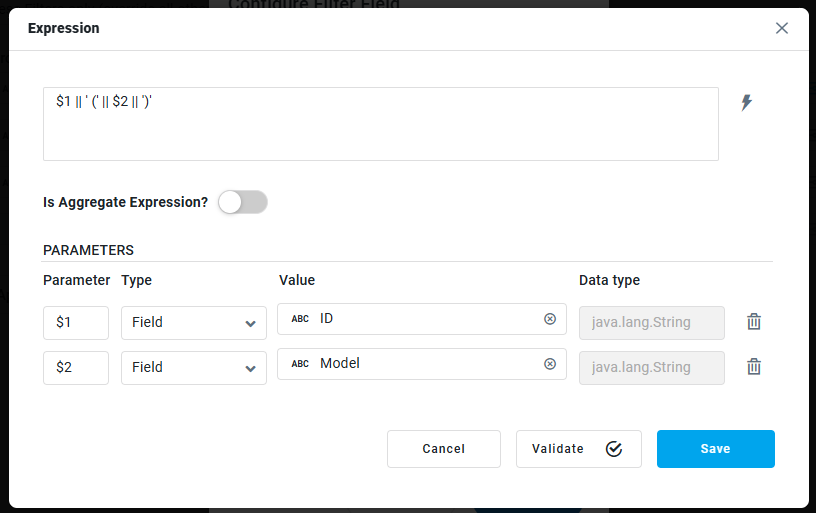
Value Display Format - add an expression to change the display format of the available filter values, eg. concatenating two properties to make the values more meaningful.
-
Example: If the Filter is configured as a
Meter.ID, it can be difficult to identify the required Meter if the ID is just a bunch of numbers. To remedy this situation, the Value Display Format field can be used to add additional information when selecting the Meter IDs, such as a Model description. This is done using a SQL Expression. For instance, use this expression$1 || ' (' || $2 || ')'to concatenate two string values. See Using Expressions.
-
-
Optimize Value Selection for Advanced Queries - on/off toggle - if enabled, a JOIN query will be used for queries with topic relationships to reduce available filter values. Available filter values will take longer to generate. Default is ON.
-
Only Show Distinct Values - on/off toggle - if enabled, only distinct values will be shown in the filter dropdown in case the field in the data source contains duplicate values. Default is ON.
-
Default Ignore Case - on/off toggle - if enabled, casing of the filtered values will be ignored. Default is OFF.
-
Reset This Filter If Dependent Filters Are Cleared - on/off toggle - if enabled, this filter value will be cleared when any of its dependent filters are cleared. Default is OFF.
-
Default Value Selection Method - dropdown - select the operator that will be used by default for any filter value selections.
Configure Section Filters
All the same configuration options are available for the Configure Section Filters option in the Sections Options menu; however, the scope of any Filters configured for the Section will only apply to the Section for which they are configured. See Manage Layout.
Contact App Orchid | Disclaimer