
Intended audience: users
AO Easy Answers: 4.5
Overview
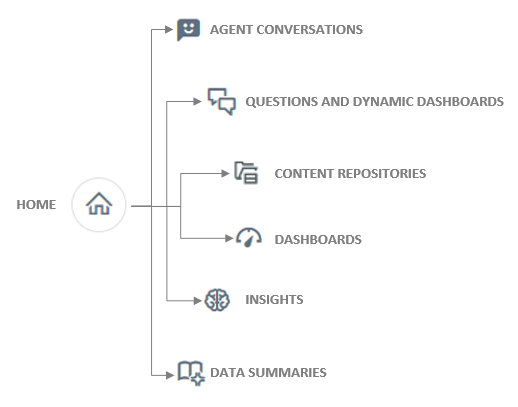
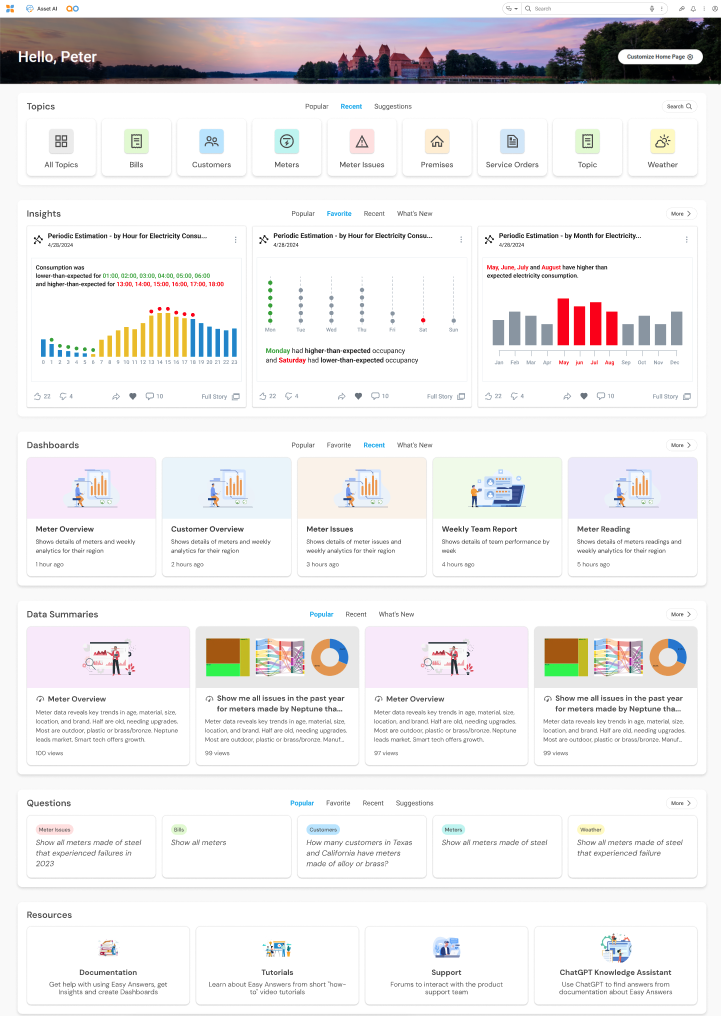
The Easy Answers Home Page is the default page for the Easy Answers solution, helping both new and experienced users easily view Topics, Questions, Insights, Dashboards, Data Summaries, and other Resources. Additionally, users with customization permissions can make both appearance and section changes to their Home Page.
Header Options
Note: Not all icons may be available in a given solution.

-
Search Type - select between Easy Answers Natural Language Question (NLQ) style search or Standard Search (based on Elasticsearch).
-
Microphone - the microphone icon allows users to speak a query instead of typing it*. This is very similar to using Siri on Apple devices or Alexa on Amazon devices.
-
Options menu - in the Search field. See Options Menu.
-
-
Dashboards - icon - opens the personal Dashboards page. Easy Answers results can be turned into personal Dashboards that can be customized and re-run whenever needed. See Dashboards Page.
-
Insights - icon - opens the Insights page to view a “feed” of system-generated Insights. See Easy Answers - Insights Page.
-
Data Summaries - icon - opens the Data Summaries page. This page includes Data Summaries generated from Results, Dashboards, and/or Insights pages. See Data Summaries Page.
-
Annotate Data - icon - opens a panel to view existing data annotations. Data annotations can be added via the Action menu on individual Dashboard Cards on the Results page. Reviewers with permissions can also Approve/Reject such data annotations from this panel. See Annotating Data and Approving Data Annotations.
-
Review Issues and Annotations - icon - opens the dialog allowing a reviewer to see details of all Easy Answers-related issues, feedback, and synonym annotations. See Reviewing Feedback for LLM-Based Questions.
-
Notifications - icon - opens the notifications panel. See Notifications.
-
User menu - icon - opens the User menu. See User Menu.
* When selecting the microphone icon for the first time, the user may be prompted to enable use of the microphone in this application. Accept to use the microphone.
Page Options
-
Customize Home Page - See Customize Home Page.
-
Sections
-
Topics - displays Topics from the Easy Answers ontology and relating to the questions previously asked. See Section - Topics.
-
Questions - displays Questions that have been prepared or asked by other users. See Section - Questions.
-
Insights - displays Insights generated by the system or users and available from the Insights Feed page. See Section - Insights.
-
Dashboards - displays the Dashboards available on the Dashboards page. See Section - Dashboards.
-
Data Summaries - displays Data Summaries available on the Data Summaries page. See Section - Data Summaries.
-
Resources - displays one or more Resources associated with the Easy Answers solutions. See Section - Resources.
-
Contact App Orchid | Disclaimer