Intended audience: users
AO Easy Answers: 5.0
Overview
All questions in Easy Answers are interpreted by a Large Language Model (LLM), which in turn creates a Semantic SQL query used by the AO Platform to request data from the data sources connected to the topics (MSOs) in the Ontology. The AO Platform employs various guardrails, and it makes use of “Interpretation Modes” (Controlled, Balanced, and Freeform) to inform the LLM how to deal with questions that can’t be immediately resolved to produce answers, ie dealing with things like ambiguities or unknown words/phrases; However, even with the full knowledge of the Ontology created and added enrichments, it happens that the question interpretation by the LLM may result in partial or inconsistent results.
When working with LLMs, it’s a golden rule to always have the human-in-the-loop to validate results. The “question verification” functionality in Easy Answers solutions is exactly that. It allows users (who have the required permissions) to mark a question as Verified, assuming the question has been correctly interpreted (by validating the generated Semantic SQL available in the Semantic SQL dialog) and results have been validated, thereby signaling to other users which questions are verified and results trusted.
This topic explains the verification workflows and the resulting visual cues.
Question Verification Workflows
There are two ways a question can be granted verified status:
-
Manual Verification - a user with permission to verify questions will see a Verify button in the UI to verify a question. The user can provide a short description to clarify the reason for the verification.
-
Auto-Verification - a new question is auto-verified if the question can be matched with an existing Semantic Template whose primary question has already been manually verified.
Examples:
-
Verify button in Easy Answers

-
Verify button in About dialog
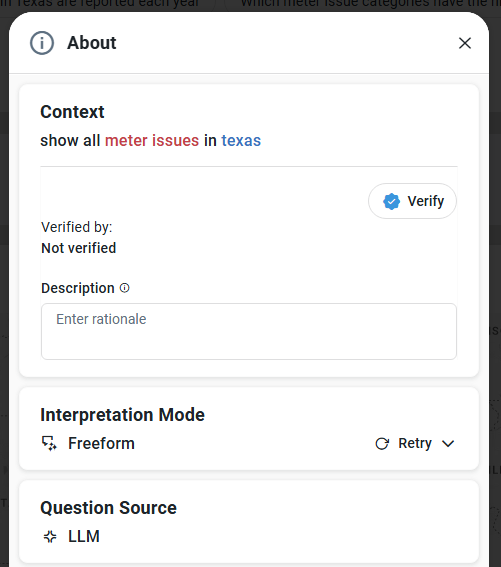
Similarly, once a question is verified, the button will change to Remove Verification.
-
Remove Verification button in Easy Answers

Permissions
The workflow to Verify and Remove Verification status for questions is only visible to users with granted permission. Verify and Remove Verification buttons will not be available in the UI without such permission. The Role(s) that a user is associated with own all permissions in the AO Platform. Role permissions can be configured by users with the Administrator Role in the Admin solution on the Security > Access Controls > Roles page.
Consider two Roles as follows:
-
Business Users - permissions to Verify/Remove Verification are revoked. In this case, the UI will not show the Verify and Remove Verification buttons.
-
Power Users - permissions to Verify/Remove Verification are granted. In this case, the UI will show the Verify and Remove Verification buttons.
Verified Questions
The Blue Badge - Visual Cue for Verified Questions
Once a question has been verified, the following will happen:
-
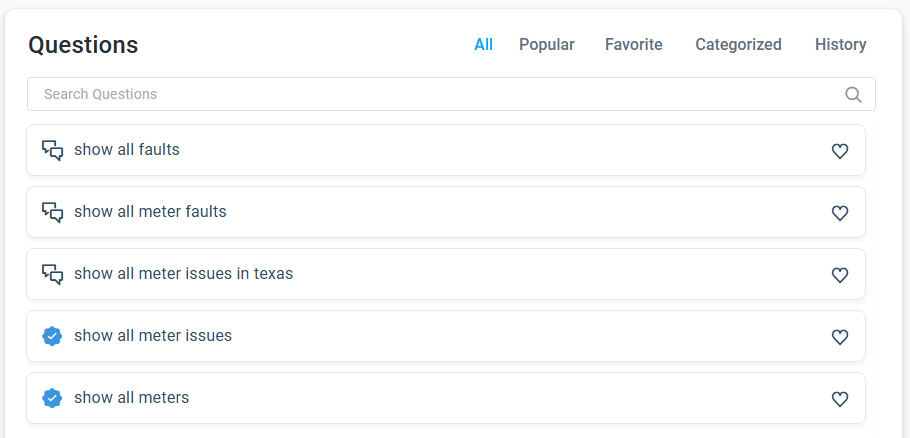
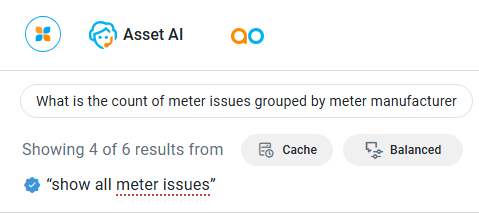
A “blue badge” will appear next to the question. There are two different shades of blue:
-
Dark blue

-
Light blue

-
-
When an explicit verification is done by the user, a Semantic Template will also be created. See the Semantic Templates section below.
-
For users without permissions to verify questions, the Retry option will be removed from the results for verified questions. Such users can still provide Feedback on a question; however, this means the question will be re-interpreted by the LLM, ie effectively considered a new question.
Examples of the Blue Badge Showing for Verified Questions
-
Questions on Easy Answers Home page.
-
Questions on Easy Answers Question and Results page.
-
Previous questions in dropdown from question input field.
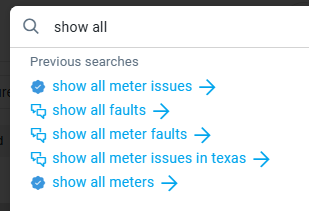
-
Questions in History dialog.
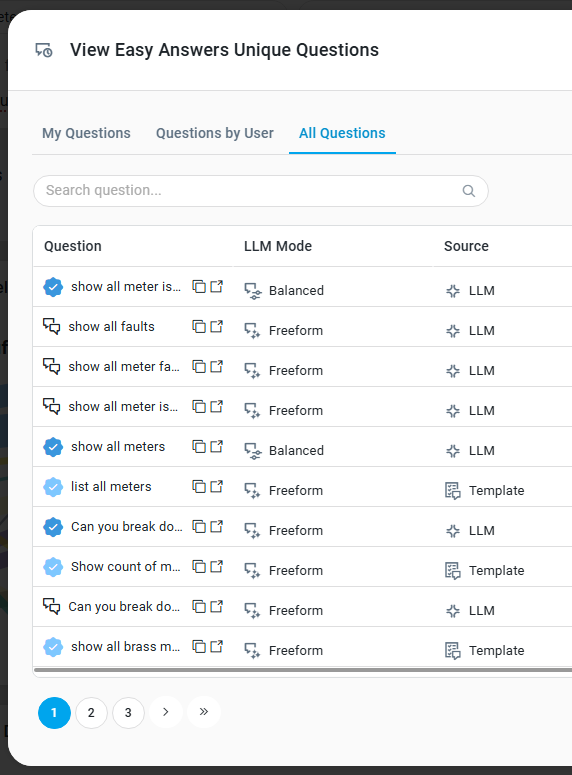
-
Suggested Questions in the Easy Answers Agent.

-
Context Question in the Easy Answers Agent conversation.

-
Question in About dialog.
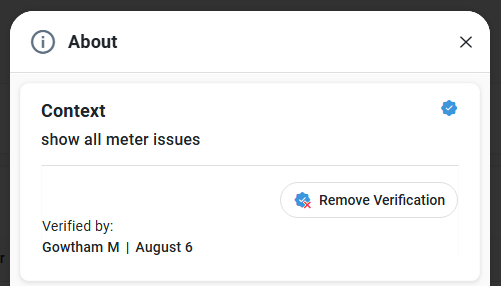
Semantic Templates
The Semantic Template functionality has been introduced to answer questions in Easy Answers faster (fewer LLM round-trips), cheaper (fewer tokens used), and to improve accuracy (repeat use of templates generated from verified questions)! To non-technical business users, the only visible UI difference is that the label identifying how the question was interpreted has a new “state”, called Template.

LLM
-
Question has not previously been asked and therefore has been interpreted by the LLM before requesting the data for the Apps on the page. This is the slowest and most expensive form of interpretation as the question has to involve the LLM to generate the Semantic SQL and finally validate against the solutions ontology to ensure accuracy of the results presented.
Cache
-
Question has been previously asked and therefore is now retrieved from the Cache before requesting the data for the Apps on the page. Data is not cached, just the question as it’s already known to the system. New questions must match an existing question exactly to be retrieved from the Cache. This is generally the fastest and least expensive form of getting results for a question, as no LLM interpretation is required.
Template
-
Question has been found to match a Semantic Template based on the question “signature” generated and one or more matching strategies.
Hovering over the labels in the UI provides insights into the path of the Question.
For Solution developers or Power Users, full details of the Semantic Templates creation and testing can be found in the Ontology Composer. See Ontology Composer > Semantic Templates
Contact App Orchid | Disclaimer