
Intended audience: users
AO Easy Answers: 4.5
Overview
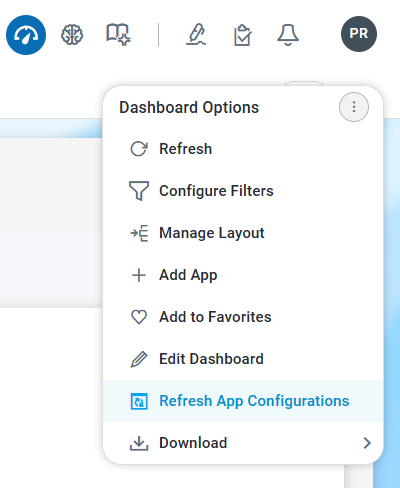
The Dashboards Options Menu includes the following options.
-
Refresh - refreshes all apps on the dashboard.
-
Configure Filters - opens a dialog to allow the user to configure page-level Filters and the Apps these Filters will impact. See Configure Filters.
-
Manage Layout - opens a dialog to allow the user to configure Sections and App Groups on the Dashboard page. Sections and App Groups can be used to organize Apps on the Dashboard page better. See Manage Layout.
-
Add App - opens a dialog to allow the user to add an App created in Application Composer. See Adding an App to Dashboard.
-
Add to Favorites - creates an entry for the dashboard in the Favorites section. This menu option changes to Remove from Favorites once the dashboard has been added as a Favorite.
-
Edit Dashboard - opens a dialog with basic configuration options for the current dashboard. See Create and Edit a Dashboard.
-
Refresh App Configurations - opens a dialog that allows a refresh of some or all App configurations in the selected Dashboard in case one or more Apps have been updated in the Composers by solution developers. Only users with granted permissions will see and be able to use this option. See Refresh App Configurations.
-
Download - shows a dialog allowing users to download the Dashboard page. See Download Report and Schedule Report Download.
Contact App Orchid | Disclaimer