
Intended audience: end-users developers
AO Easy Answers: 5.0
Overview
The Easy Answers' View All History option is available in the Options menu and is specific to LLM-based questions. When selected, it allows users to inspect the details of each unique Easy Answers question and some additional status and statistics.
View Easy Answers Unique Questions (All History) Dialog
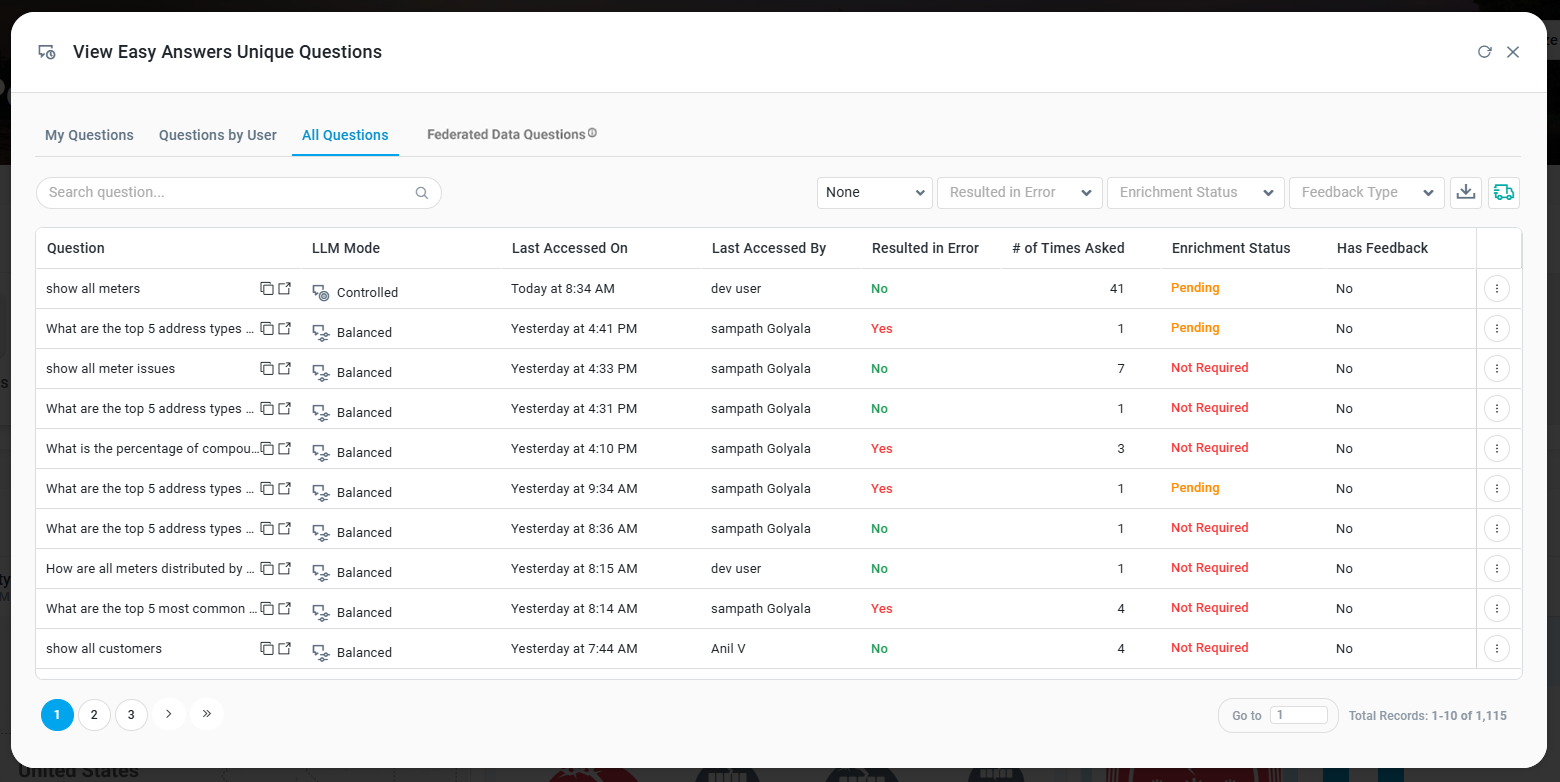
The View All History dialog includes four tabs:
-
My Questions - as the label says, the unique questions on this tab are specific to the current user.
-
Questions by User - the unique questions on this tab are for all users.
-
All Questions - all the unique questions on this tab are shown, irrespective of which user asked them most recently.
-
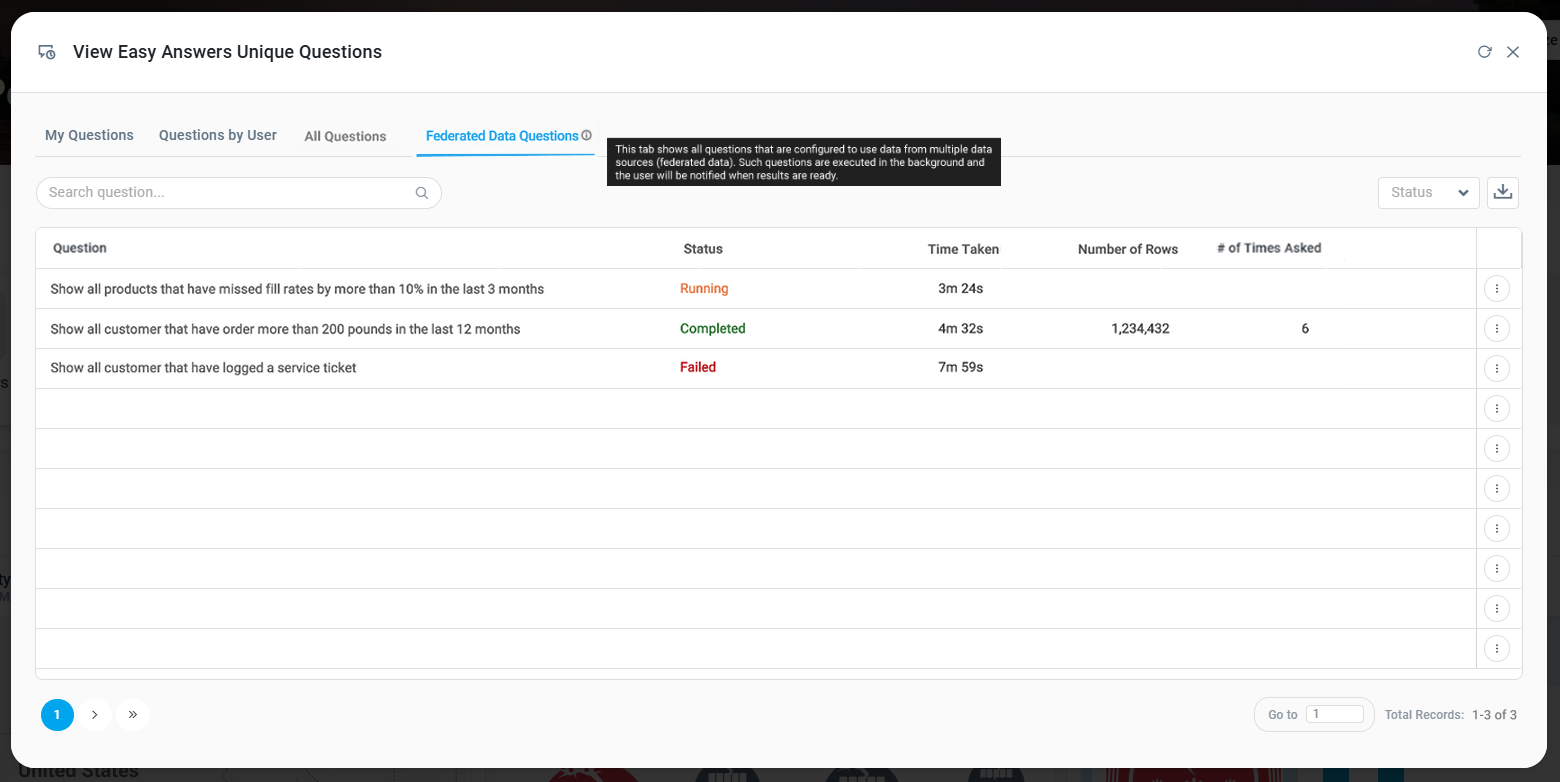
Federated Data Questions - this tab shows a unique list of questions asked against a Federated Data configuration. This option only shows if the Ontology for the Easy Answers solution is configured to use a Federated Data setup.
The following Search and Filters are available - dependent on what is shown on tabs:
-
Search - text field - enter a search term to find questions matching the search term.
-
Resulted in Error - dropdown - select which questions to include based on whether or not Results were generated. Options are: No, Yes.
-
User - dropdown - select which questions to include from the available Users.
-
Enrichment Status - dropdown - select which questions to include based on Enrichment Status, including: Not Required, Pending, In Progress, In Review, and Completed.
-
Feedback Type - dropdown - select which questions to include based on whether or not Feedback has been provided, including: Yes, No.
-
Status - dropdown - select which questions to include. Only shows the last status for Federated Data questions: Completed, Failed, Running.
-
Download - icon - click to open the Download Questions dialog. See separate section below.
-
Add to Transport - icon - click to add the Question Cache to Transport. This option is only available on the All Questions tab. Once Question Cache has been added, the icon turns green. The transport object will appear in the Transport Tool’s Download page with the Transport Type “Question Cache”.
-
Note: Questions from the Cache will not include Questions that originate from being associated with a Semantic Template. See Add Semantic Templates to Transport in the Ontology Composer. Secondly, if a Question in the Transport already exists in the Cache on the Target system, it will not be replaced.
-
All Questions
Federated Data Questions
Download Questions
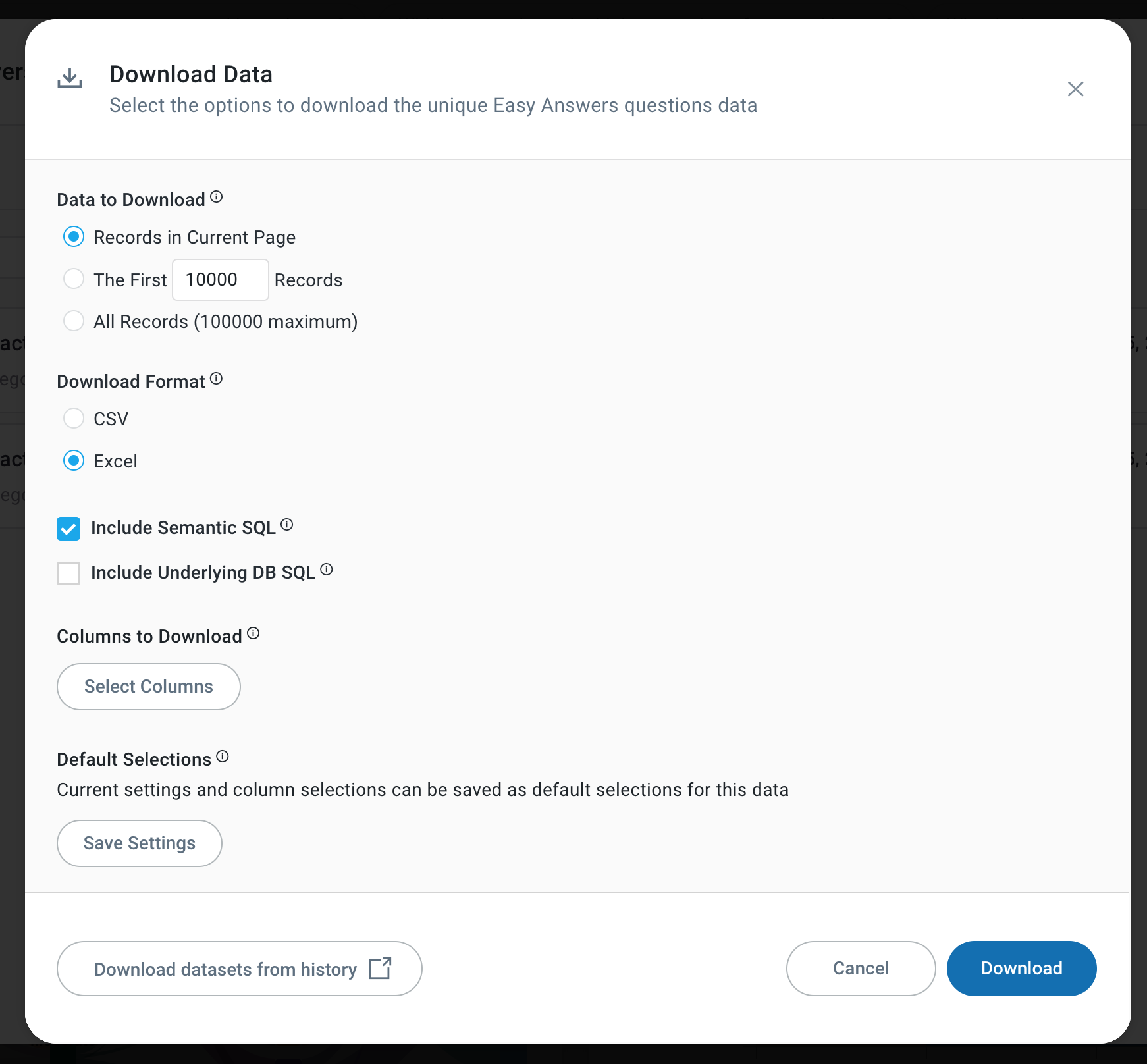
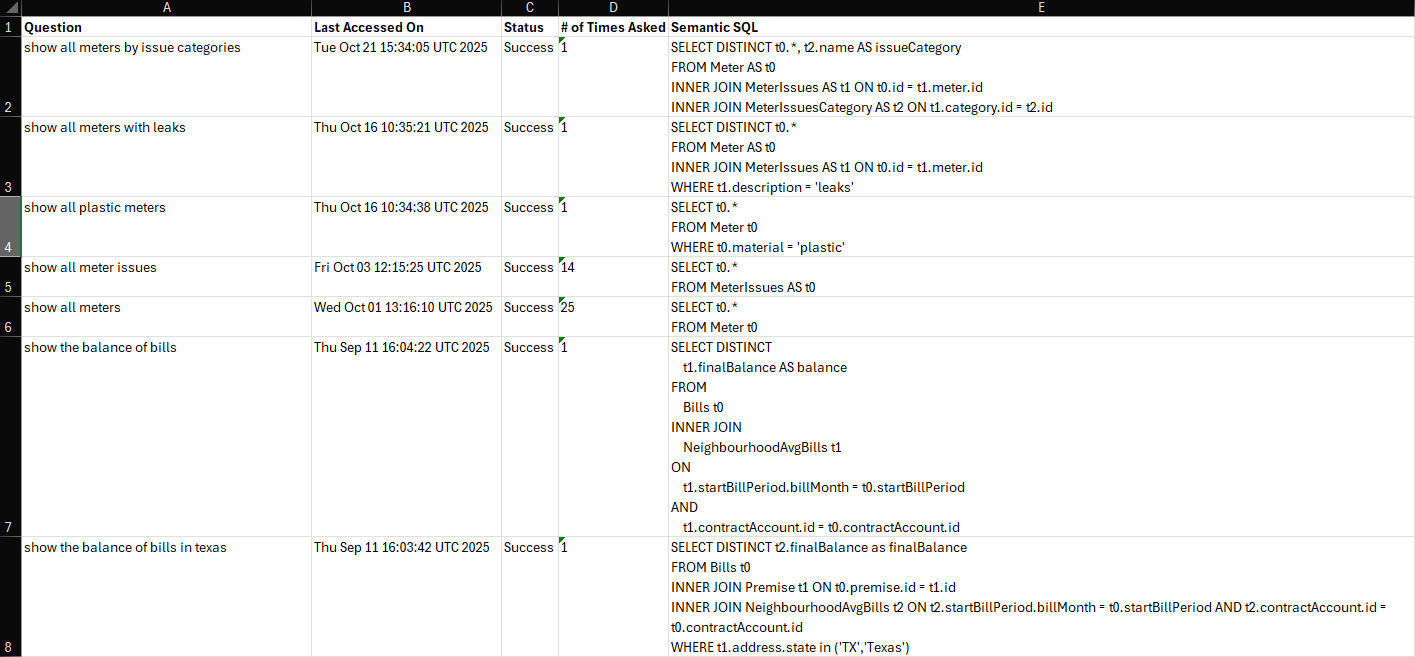
This option is available for all tabs and allows data to be downloaded to a Comma-Separated Value (.csv) or an Excel file. See details for the Table App in the Downloading Data - Individual Appstopic. The download contains the following columns:
-
Question - the Natural Language Question asked by the user.
-
Last Accessed On - timestamp for when the question was last asked.
-
Status - the status of the execution of the question: Success or Failure.
-
# of Times Asked - the number of times the question has been asked.
-
Semantic SQL - the SQL query that is composed by the AI to reflect the question asked by the user.
Download Data dialog with Include Semantic SQL and Include Underlying SQL options
Output from download with “Include Semantic SQL” option checked.
Contact App Orchid | Disclaimer