
Intended audience: users
AO Easy Answers: 4.5
Textual Response
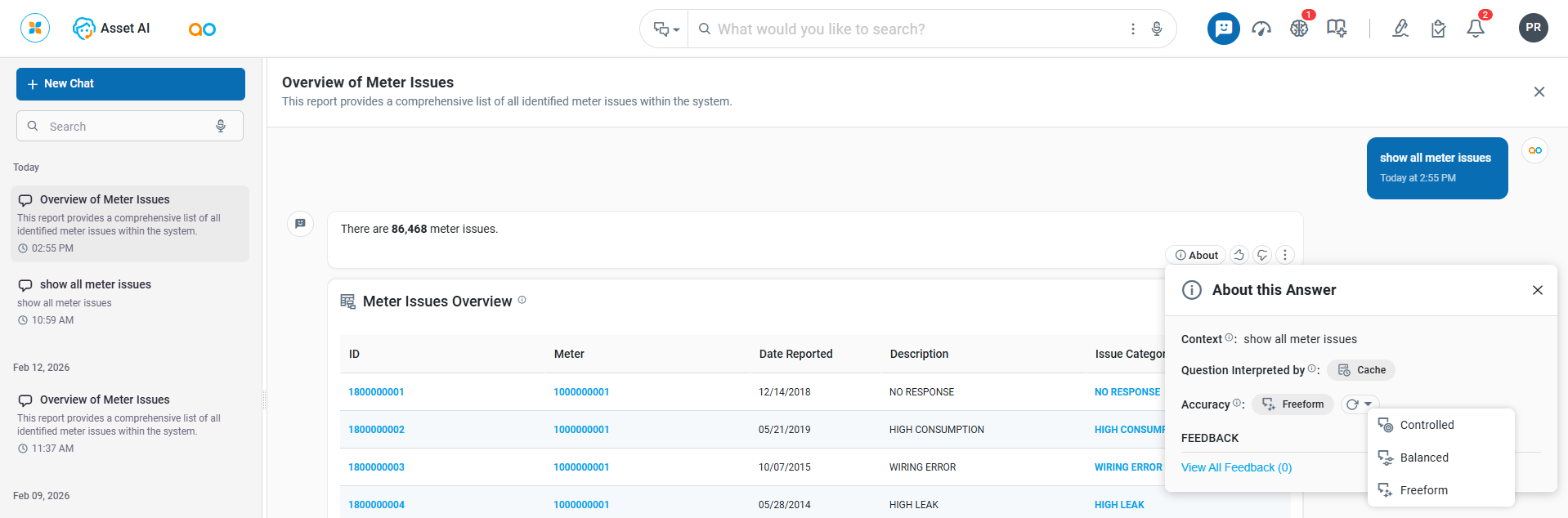
About This Answer
-
Context - this shows the full question that was interpreted based on the previous questions asked in the conversation.
-
Question Interpreted by - this shows if a previous question was used to answer the current question (Cache), or the current question was sent for interpretation by the AI/Large Language Model (LLM).
-
Interpretation Mode - w/Retry option - this shows which Interpretation Mode was used by the system to understand the question asked (Controlled, Balanced, or Freeform). Power users with granted permissions will be able to select a different Interpretation Mode from the dropdown next to the Retry icon.
-
View All Feedback (x) - link - this link can be used to view previous Feedback provided (if any) to a given response.
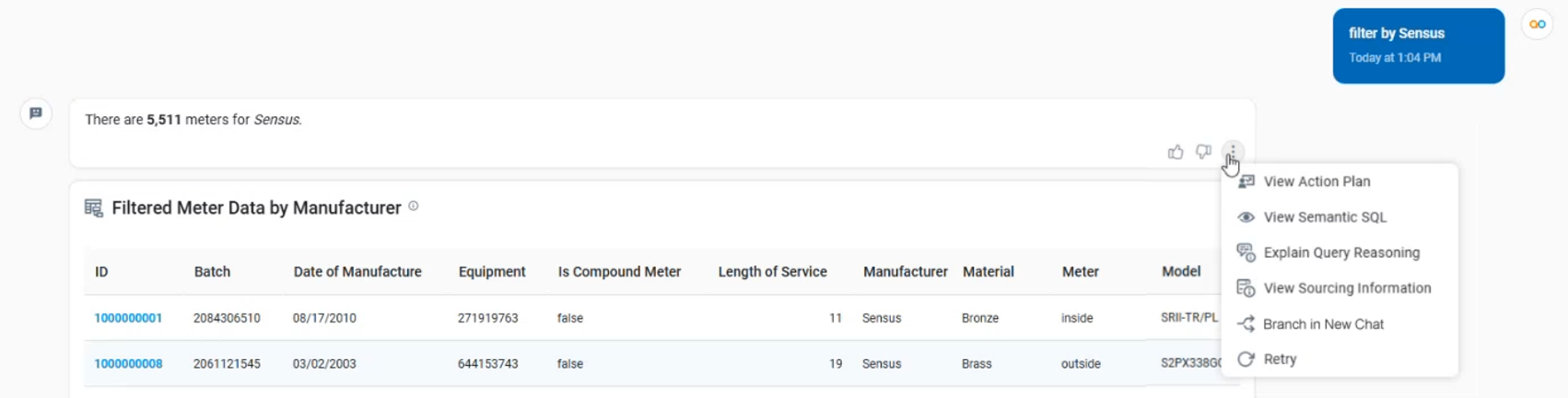
Options Menu
-
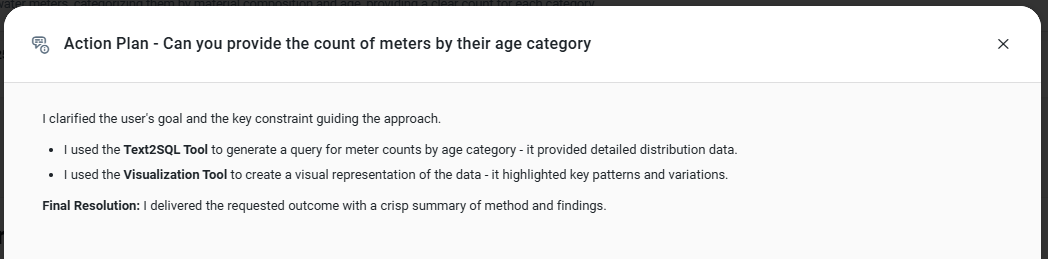
View Action Plan
-
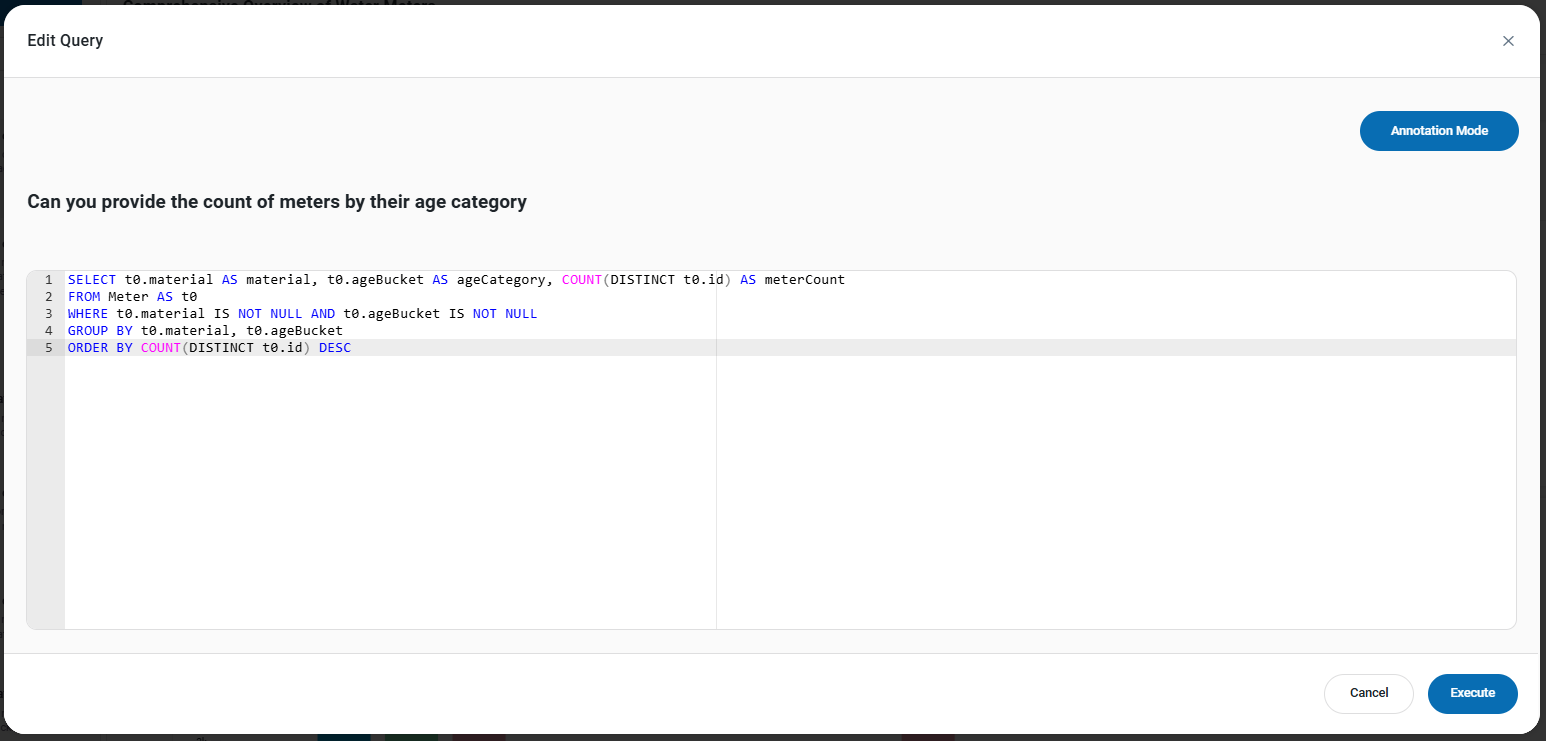
View Semantic SQL
-
Explain Query Reasoning
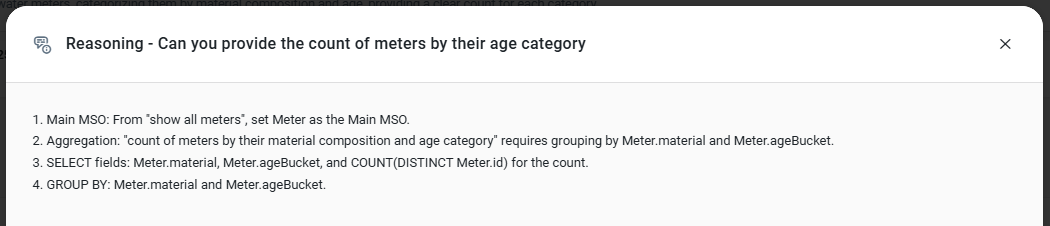
-
View Sourcing Information
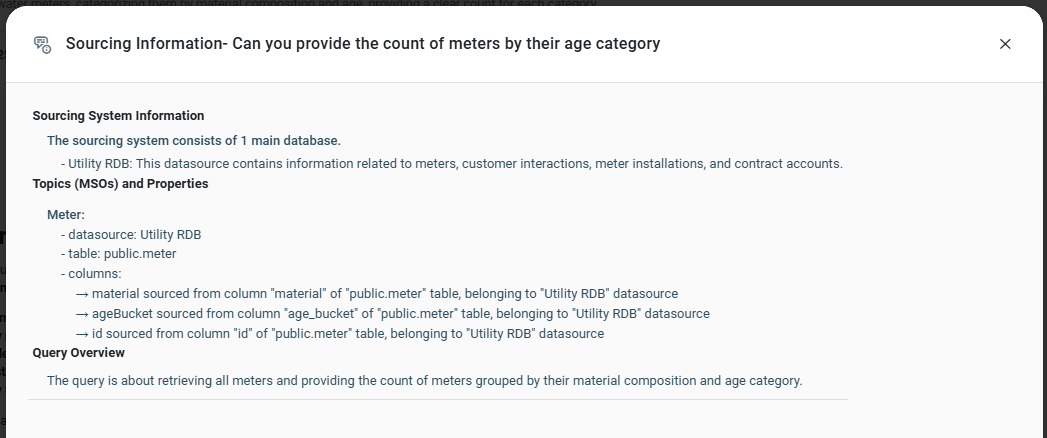
-
Branch in New Chat - when clicking the Branch to New Chat button, the Agent will create a conversation thread from the selected answer, allowing the user to continue asking questions in that thread. When done, the user can go back to the main Agent thread by using the back arrow “<“ in the top/left corner of the Agent panel.
-
Retry - click to rerun the question to have the data in the response updated.
Providing Feedback
App Response
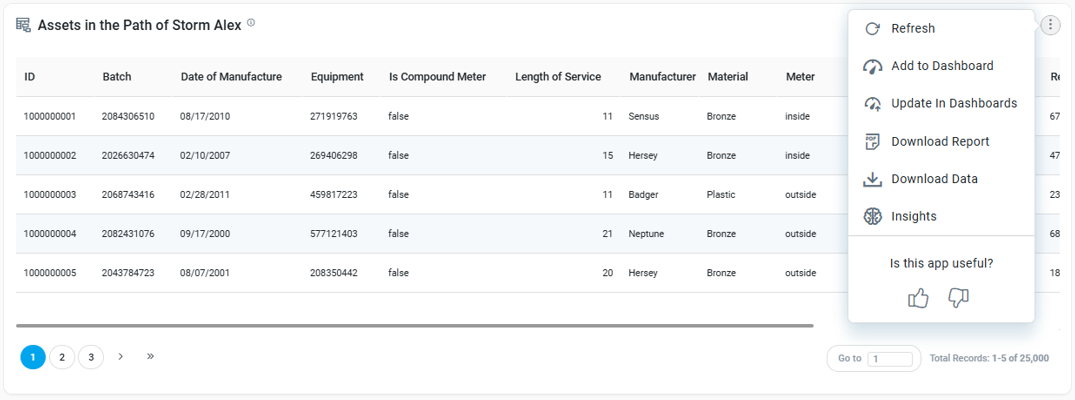
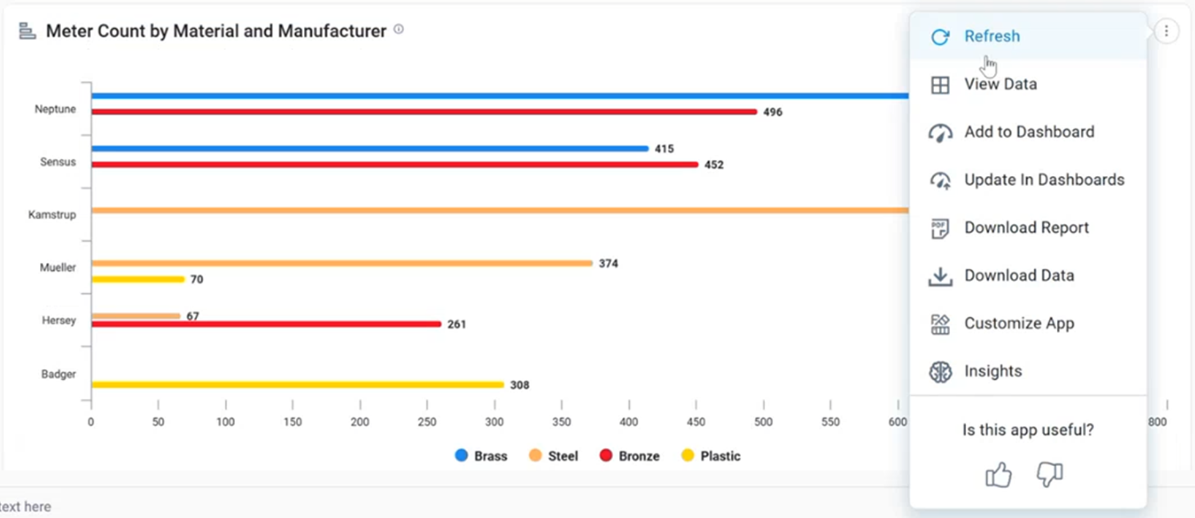
Options Menu
-
Refresh - select to refresh the data in the App.
-
View Data - where relevant, will open the App in full-screen and show a table of the data on the Data tab. The data shown in the table can be downloaded from its own menu option. See Downloading Data - Individual Apps.
-
Add to Dashboard - opens a dialog providing options to add the Dashboard App to another existing or new Dashboard. See Adding an App to Dashboard.
-
Update in Dashboards - opens a dialog providing options to update the current App in existing Dashboards, whether those Apps are the same/similar to the current App, or completely different. See Updating an App in Dashboards.
-
Download Report - downloads a PDF file of the App in either Concise (as seen on screen) or Verbose format. Verbose format has option to also include a generated Data Summary of the App.
-
Download Data - downloads the data used to generate the App. See Downloading Data - Individual Apps.
-
Customize App - opens a dialog allowing the user to quickly change the visualization type for a given App. The Customize App option may not be available for all Apps, and the selection of alternative visualizations available depends on the App. See Customize Apps.
-
Insights - opens a dialog allowing the user to select from different Quick Insights options, including Outlier detection, Change Point detection, Periodic Trend detection, and Regression Trend detection. These Insights require the data in the App to have time-series data values. See Quick Insights Based on Machine Learning Models.
Providing Sentiment
-
Thumbs Up - a simple acknowledgement will be shown at the top of the screen. This will signal to the Agent that the user is satisfied with the response, and the Agent will, over time, learn and optimize future responses.
-
Thumbs Down - opens a dialog where the user can provide some input as to why the thumbs-down icon was clicked. Provide as much information as possible. When clicking the Submit button, the Feedback will be sent for approval (or rejection) by a “supervisor” user with additional permissions to update the Ontology to benefit future users asking the same or similar questions.
The Thumbs Up/Down options are not available for Apps added to a named Dashboard. Sentiment rating and recommendations are specific to the Results page when asking Natural Language Questions in Easy Answers.
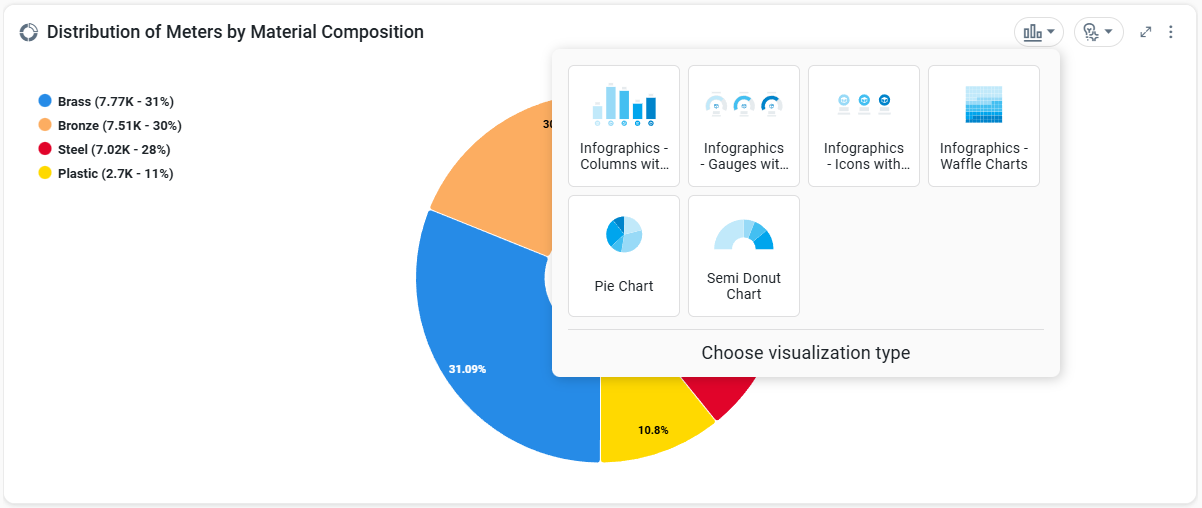
Choose Visualization Type
-
This option is available in Chart Apps only and will be suggested based on the compatibility with the data retrieved for the App. Simply select any of the proposed alternative visualizations to replace the current visualization.
Data Summary
-
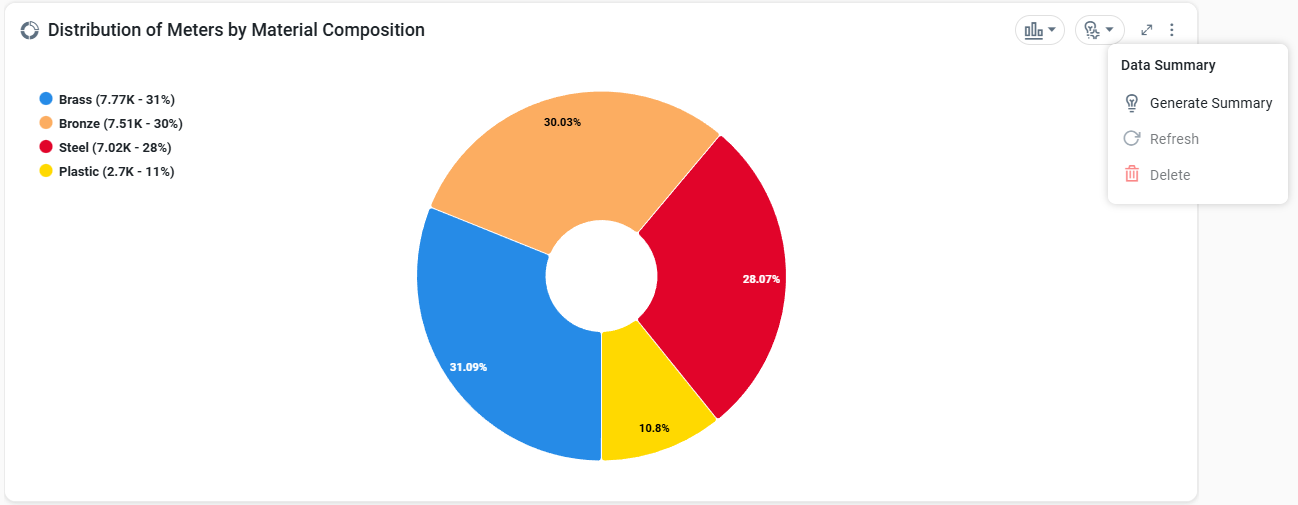
This option shows the additional Data Summarization that can be generated for the App. See Adding Data Summaries for details.
App when Opened in Full-screen Mode
-
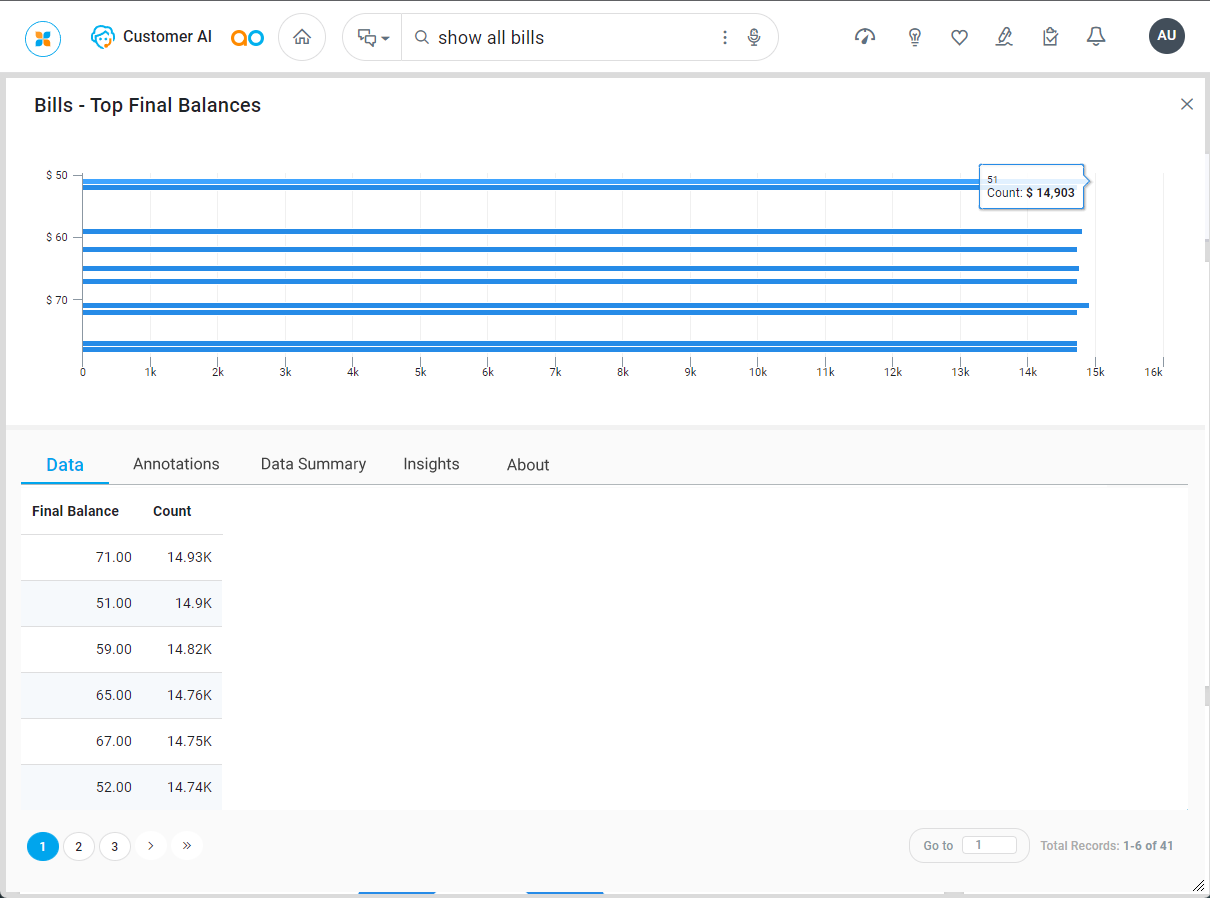
When selecting the expand icon in the App header, a dialog opens the App in full-screen mode. The dialog consists of two halves:
-
Top half - shows the App as it was shown on the Results page.
-
Bottom half - shows additional information related to the App, including one or more of the following tabs:
-
Data - shows a table of the data that was used to generate the visualization of the App. For Apps containing multiple data sources, such as a chart with multiple data series, a secondary row of tabs will be shown, with each tab representing the different data series available.
-
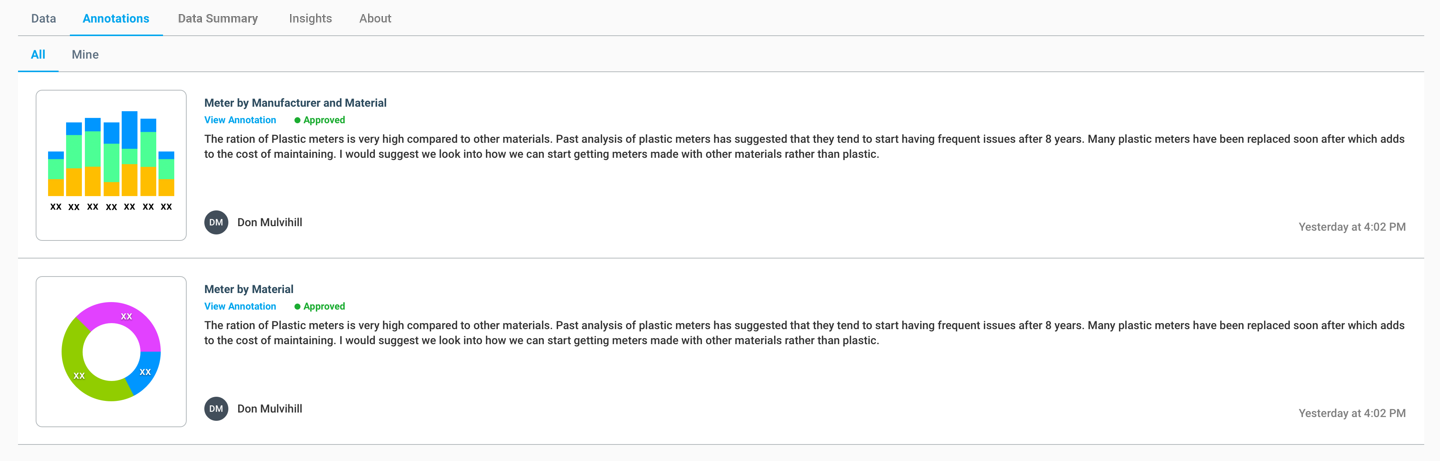
Annotations - shows any annotations that have been added for the App by either All users or only the current user (Mine). See Annotating Data.
-
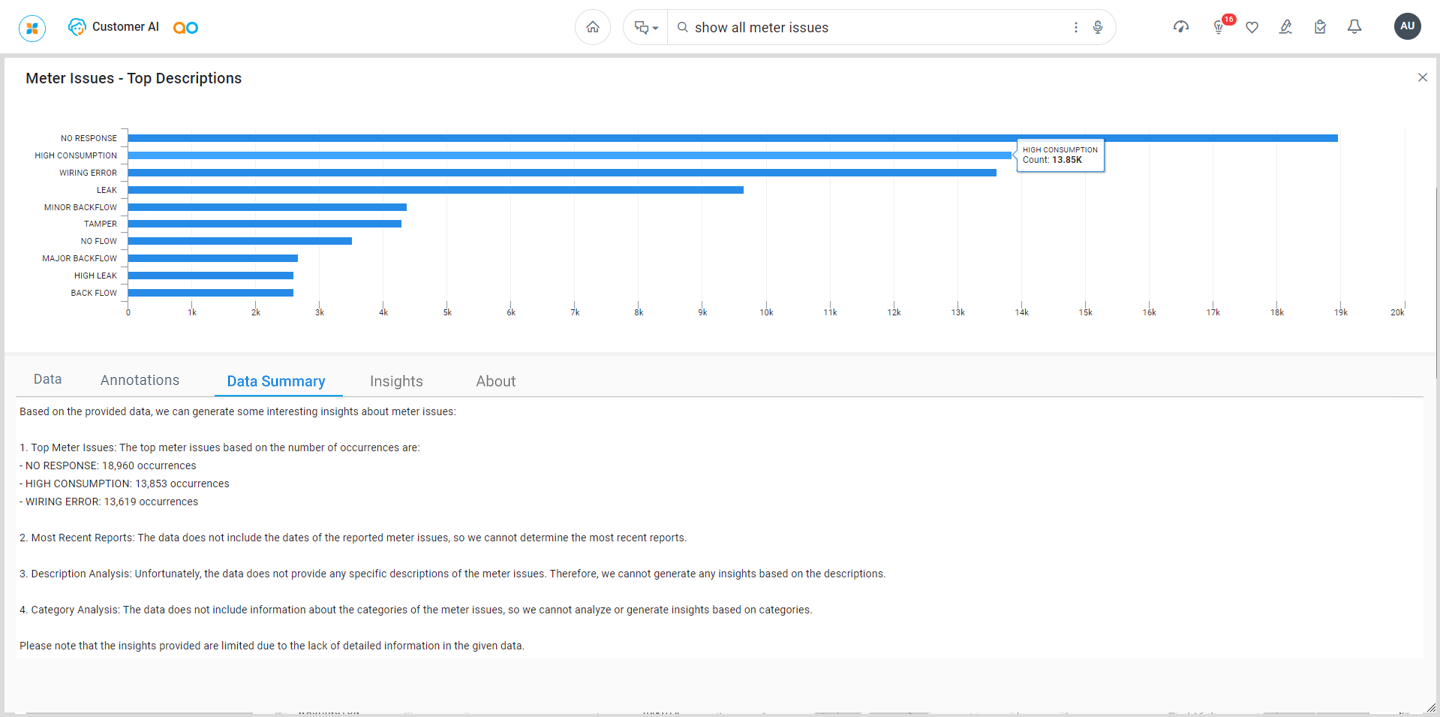
Data Summary - (previously GenAI Insights) - shows the additional Data Summarization that can be generated by external services, such as OpenAI. See Adding Data Summaries for details.
-
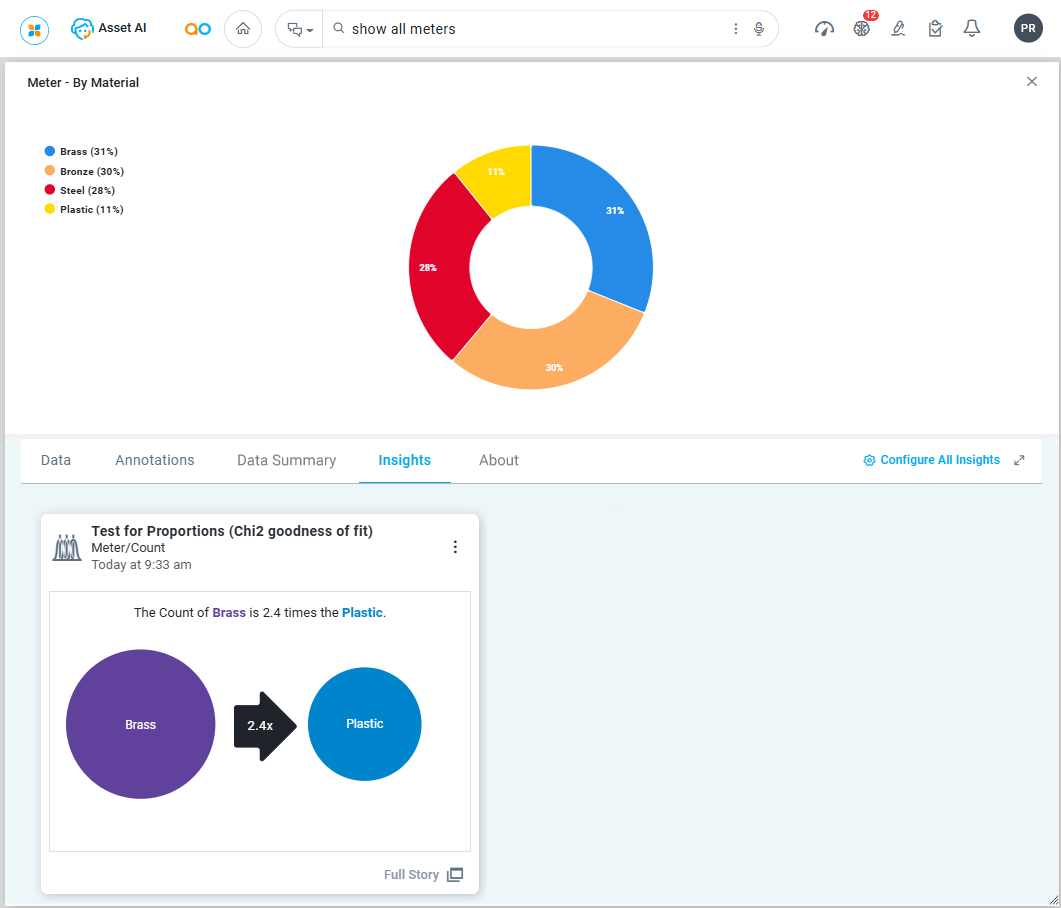
Insights - shows the Quick Insights that may have been requested by the user or otherwise generated on a schedule for an App. See Quick Insights Based on Machine Learning Models.
-
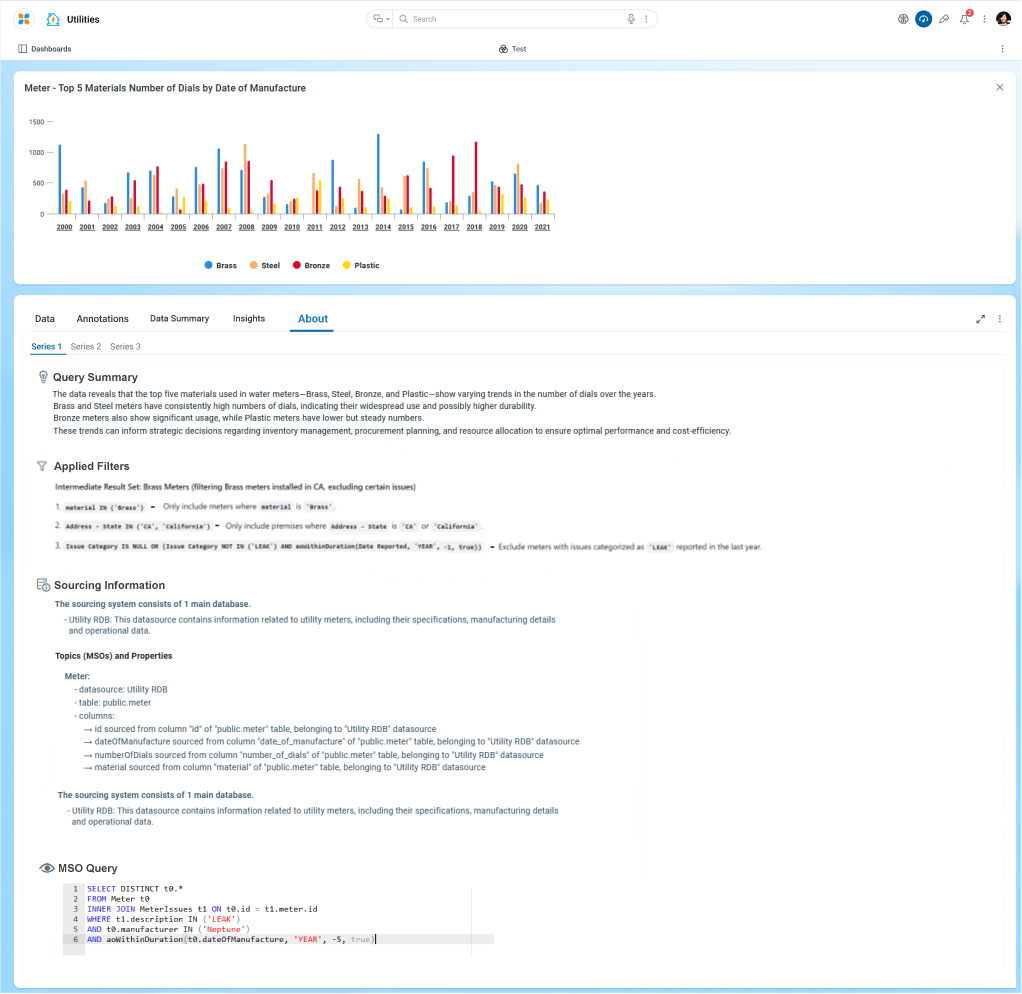
About - For each data series, the following sections will be displayed:
-
Information - this section will only be shown for certain Apps. The two different statements will be conditional on the App shown and if Role-based Permissions are configured.
-
Query Summary - shows the overview summary for the App - specific to each data series (if more than one series).
-
Applied Filters - shows an LLM-generated, plain English short description of any applied filters - specific to each data series (if more than one series).
-
Sourcing Information - shows the existing View Sourcing Information - specific to the App and to each data series (if more than one series).
-
Semantic SQL - shows the existing View Semantic SQL specific to the App and data series (if more than one series).
-
-
-
Data Tab
Annotations Tab
Data Summary Tab
Insights Tab
About Tab
For more user actions on data, see Actions on Data within Apps.
Contact App Orchid | Disclaimer