
Intended audience: users
AO Easy Answers: 4.5
Asking Questions
-
To start interacting with the Agent, click the Agent icon in the Header.

On the Welcome Page
-
The Welcome screen is shown with some question suggestions. Click a suggested question, or ask a question in the input field. The question becomes the first question of a conversation with the Agent. Subsequent questions will be answered in context with the previous questions.
-
An example:
-
question 1: show me all customers
-
question 2: living in Texas
-
question 3: in apartments
-
question 4: between January 2024 and July 2024
-
-
To start a new conversation, use the New Chat functionality (see From the History Panel section below), or select Branch in New Chat from any previous response. This will start a New Chat with the context from that point in the conversation. See Agent - Acting on a Response.
Instead of typing questions, the user can also click the microphone icon and speak the questions.
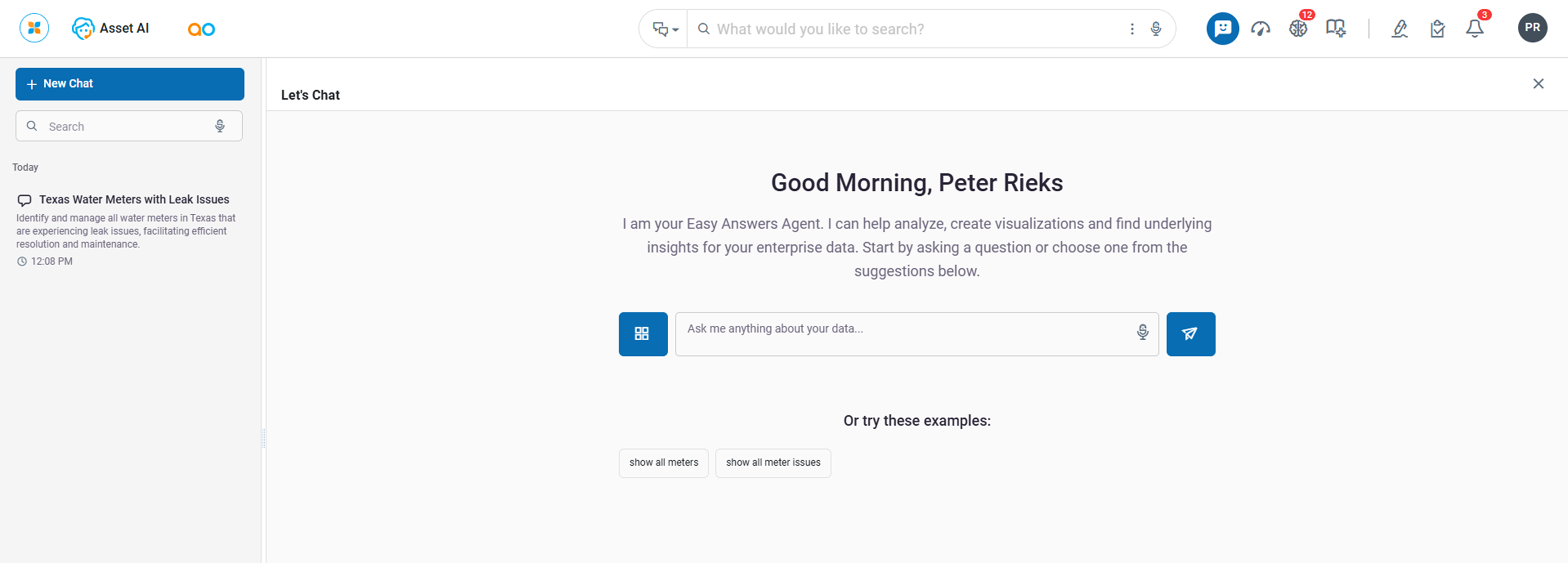
In the Schema Dialog
-
If the user is new to the solution, the

-
Questions can be viewed according to the tabs in the Questions panel:
-
All - all questions asked by all users will be shown.
-
Popular - all questions asked by all users with the same Role association as the current user will be shown.
-
Favorite - all questions marked as a Favorite by the current user will be shown.
-
Categorized - all questions will be shown organized by their Categories.
-
History - all questions will be shown in reverse-chronological order.
-
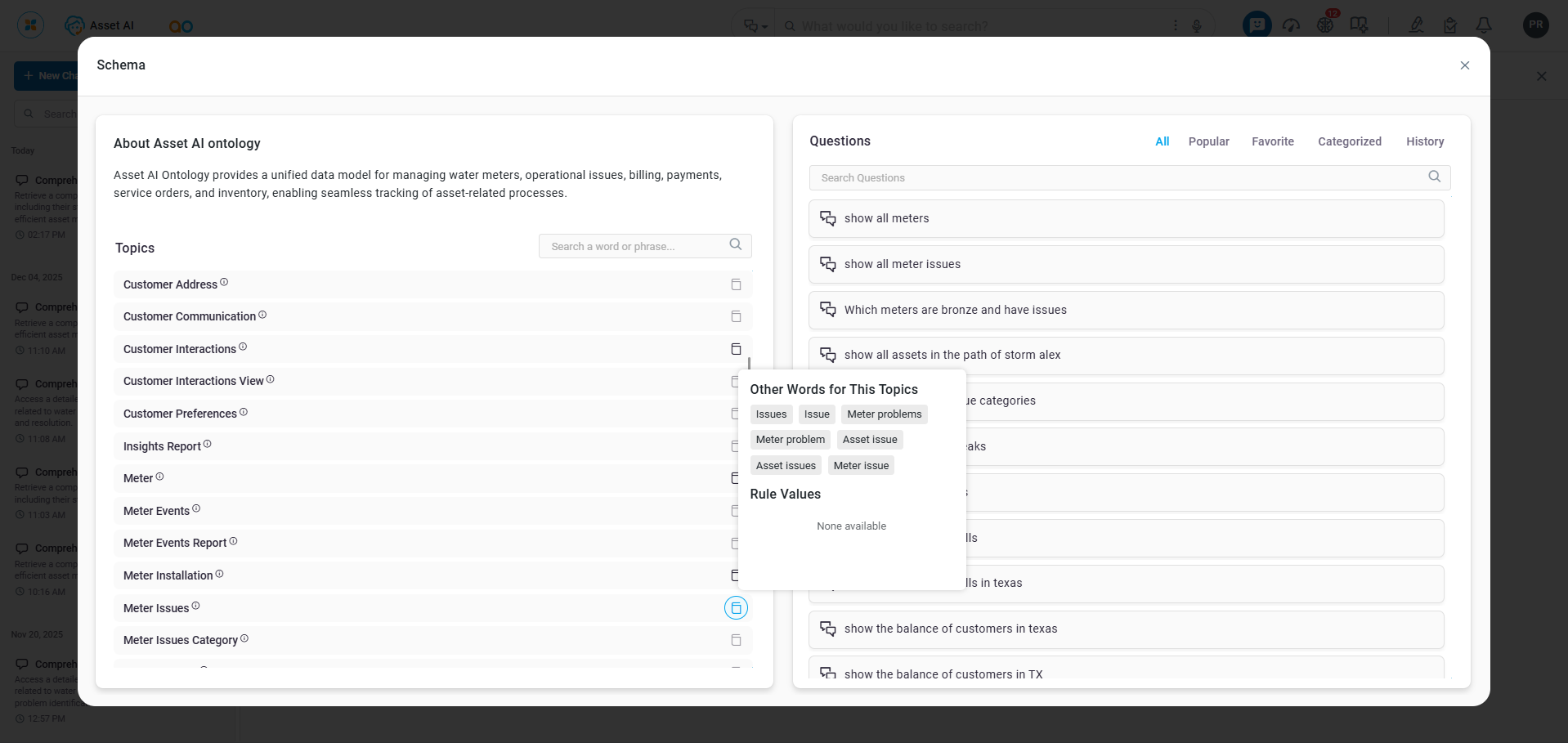
In a Conversation - Context Matters!
-
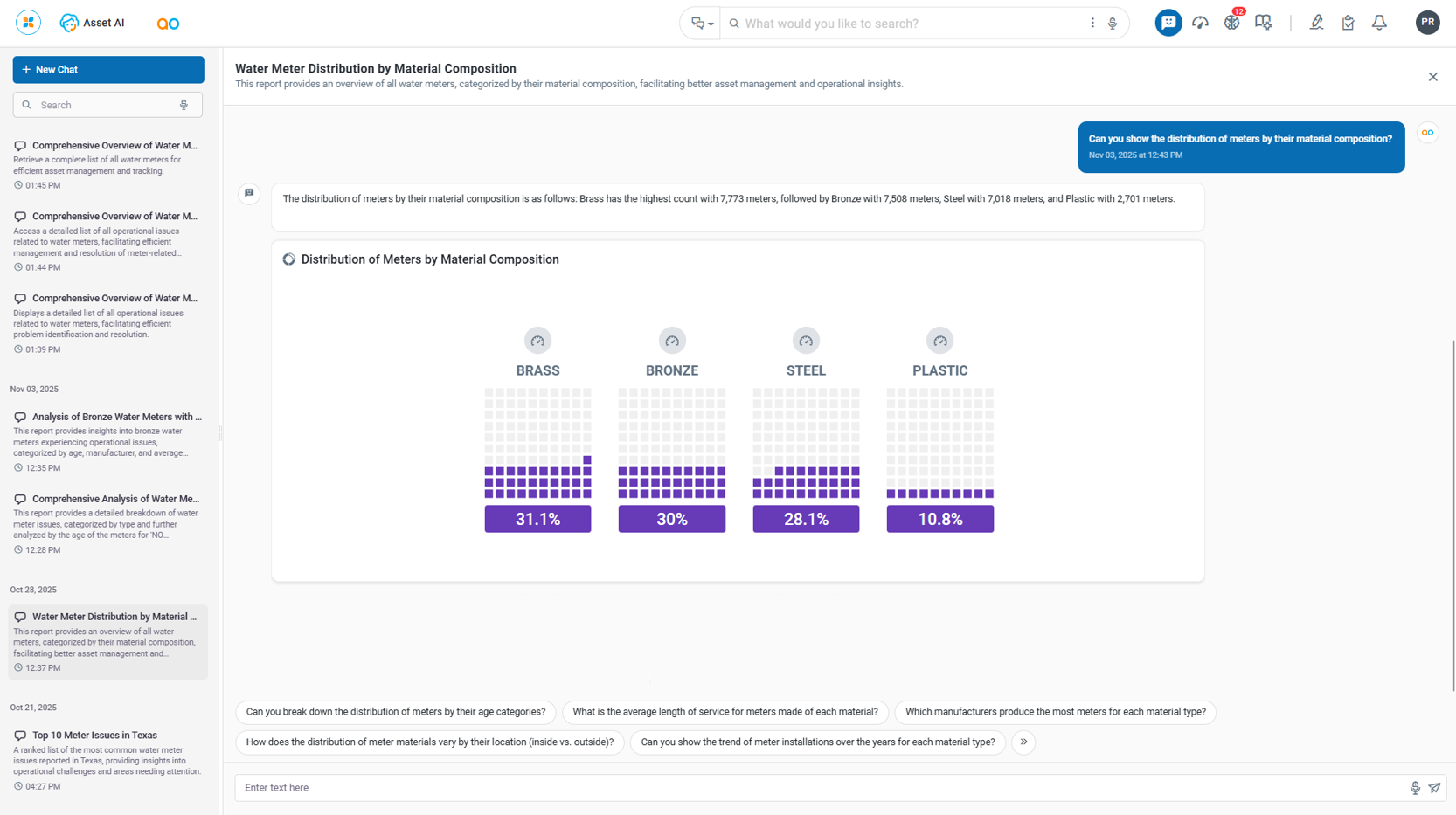
On the conversation page of the Agent, additional questions can be entered into the field at the bottom of the page. Above the question field, the Context is shown for which the new question will be added.

Follow-up Questions
-
Once a question has been answered, one or more suggested follow-up questions will be added to the bottom of the conversation page for easy execution. Simply click on one of these questions to continue the conversation.
From the History Panel
-
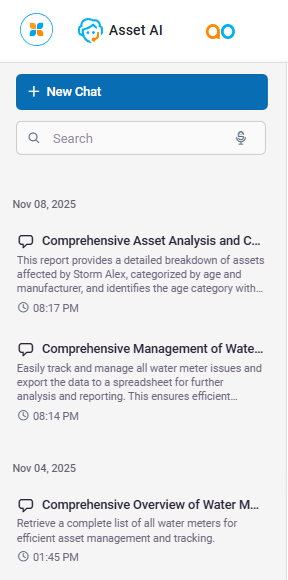
Questions are organized into conversations, so it’s recommended to only ask questions that are naturally building on previous questions in the conversation. If the user wants to ask questions that are not directly related to previous questions, click the “+ New Chat” button in the left-side panel. This panel accumulates all conversations in a History list with LLM-generated Titles and Descriptions. The user can click any of these entries to resume a previous conversation.
Transferring a Question to the Easy Answers Page
-
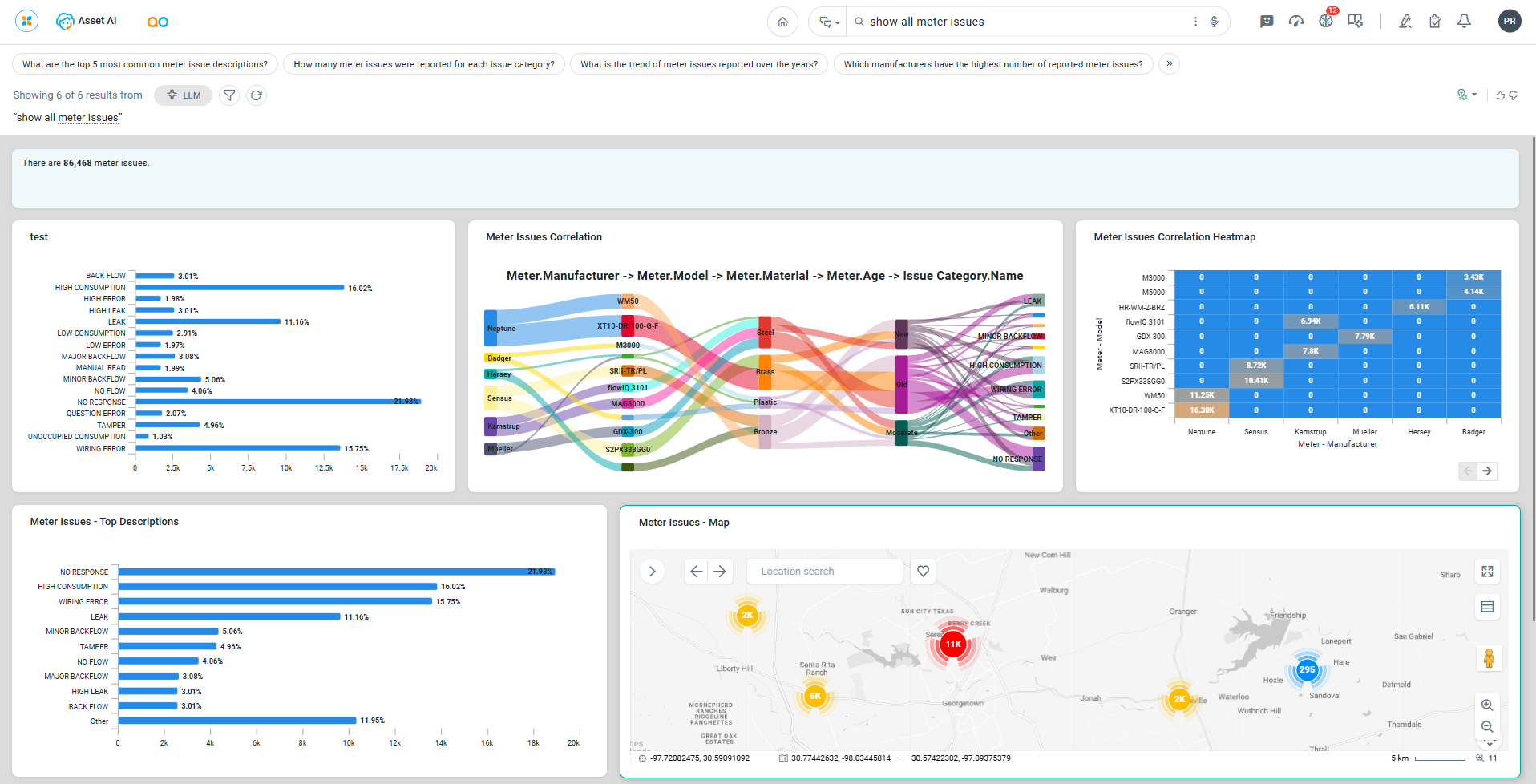
A question that has been asked in the Easy Answers Agent can be easily transferred to the Easy Answers Page. The benefit of doing that is that multiple Apps will be generated in an ad-hoc dashboard format for a more in-depth response. This typically includes Summary Apps, Apps from Statistics, Apps from secondary/connected MSO, Curated Apps, etc…
-
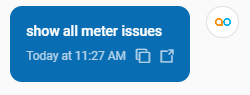
Click the Link icon in the question box to transfer the question to the Easy Answers page.
-
Example of an ad-hoc dashboard on the Easy Answers Page.
Contact App Orchid | Disclaimer