
Intended audience: users
AO Easy Answers: 4.5
Providing Feedback
Feedback can be provided by users for both the results generated as well as during the “clarification” process (if required). This topic discussed the Thumbs Up / Thumbs Down options:
-
Thumbs Up - a simple acknowledgment will be shown at the top of the screen.

This will signal to the system that the user is satisfied with the response. No further feedback will be requested. Additionally, validated questions and their corresponding results will also save the question interpretation (not the resulting data) to the Cache to improve performance when the same question is asked in the future.
-
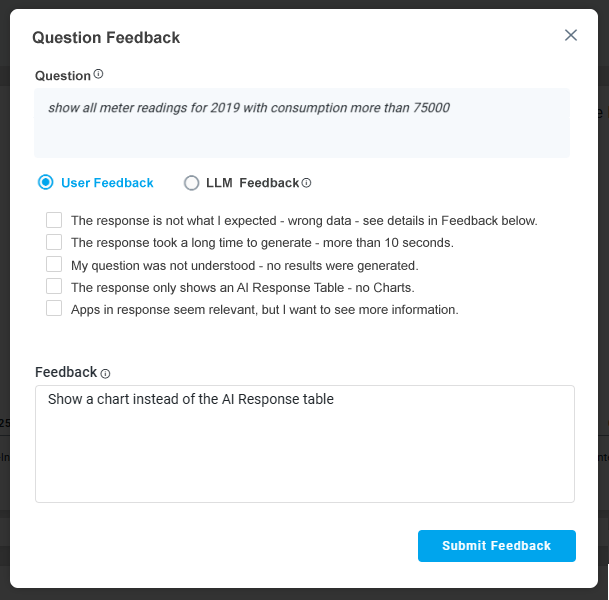
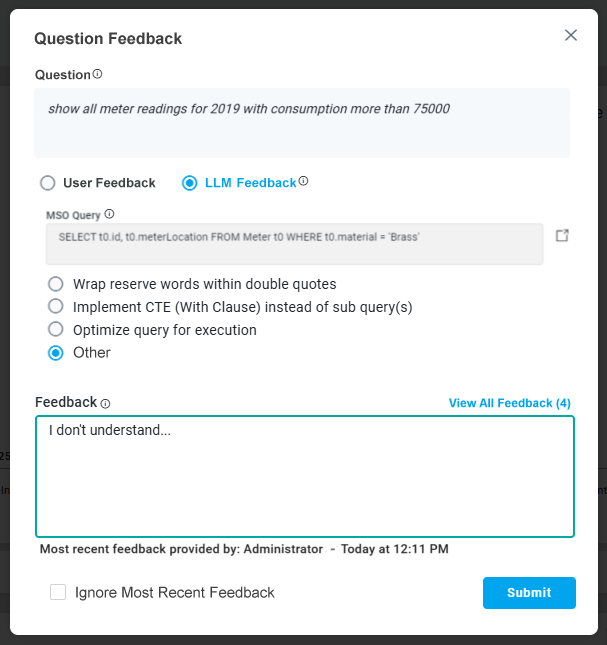
Thumbs Down - opens a dialog where the user can provide some input as to why the thumbs-down icon was clicked. Provide as much information as possible. When clicking the Submit button, the Feedback will be sent for approval (or rejection) by a “supervisor” user with additional permissions to update the Ontology to benefit future users asking the same or similar questions.
|
User Feedback |
LLM Feedback |
|---|---|
|
This radio-button option is available for simpler, non-technical feedback on the user experience about how the question was interpreted by the system and the responses provided to the question. The User Feedback does not immediately change the question interpretation by the Large Language Model, but will be submitted for review. |
This radio-button option is available for technical users with insight into database queries and allows for feedback to aid the system to be updated with prompt instructions, linguistics words, or other changes to allow improved interpretation of future user questions. The LLM Feedback will immediately impact how a question will be interpreted by the Large Language Model, as any Feedback provided will be added to prompt instructions when the question is retried. |
|
|
Technical Insight on LLM Feedback Options
|
LLM Feedback Options |
When to Use |
Why |
|---|---|---|
|
Wrap Reserved Words Within Double Quotes |
|
|
|
Implement CTE (WITH Clause) Instead of Subquery |
|
|
|
Optimize Query for Execution |
|
|
The About Button
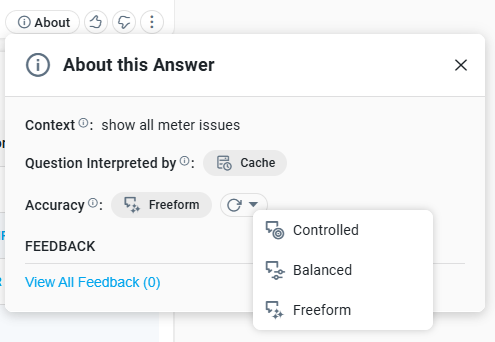
When Thumbs Down has been used to provide Feedback by any user, the current user can view the Feedback that impacted the question by clicking on the “View All Feedback” link in the “About This Answer” dialog from the About box associated with the textual response.
To view the full Question History and associated Feedback for all unique questions, see Viewing All Agent History.
For technical/power users, the Review Feedback workflow screen allows for management of the Feedback for either current user questions or all questions, including updating Prompt Instructions, Words (Synonyms), and any other Ontology updates needed to improve how LLM-based questions are being interpreted and results provided. See Agent - Reviewing Feedback for LLM-Based Questions.
Contact App Orchid | Disclaimer