
Intended audience: end-users developers
AO Easy Answers: 4.2
Overview
The Easy Answers' Assign Access for public dashboards option is available at two different levels: folder level and individual dashboard level.
Assigning access starts with the user moving a dashboard to the public dashboard section in the dashboard panel. Without doing anything further, all other users will now be able to open/view the dashboard, ie default access is View only. If, however, some users are required to be able to Edit and/or Delete a public dashboard, it’s required that such permissions are configured for either the folder containing the dashboards or for individual dashboards directly. Permissions can only be assigned to users belonging to a given Role.
Access Permissions for Public Folders
-
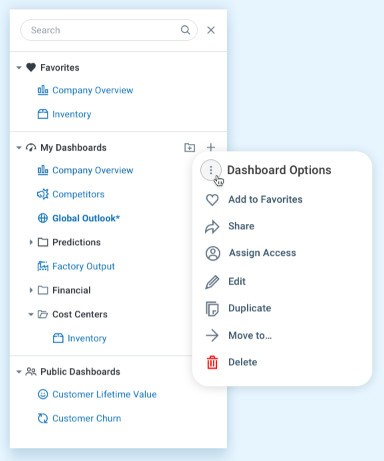
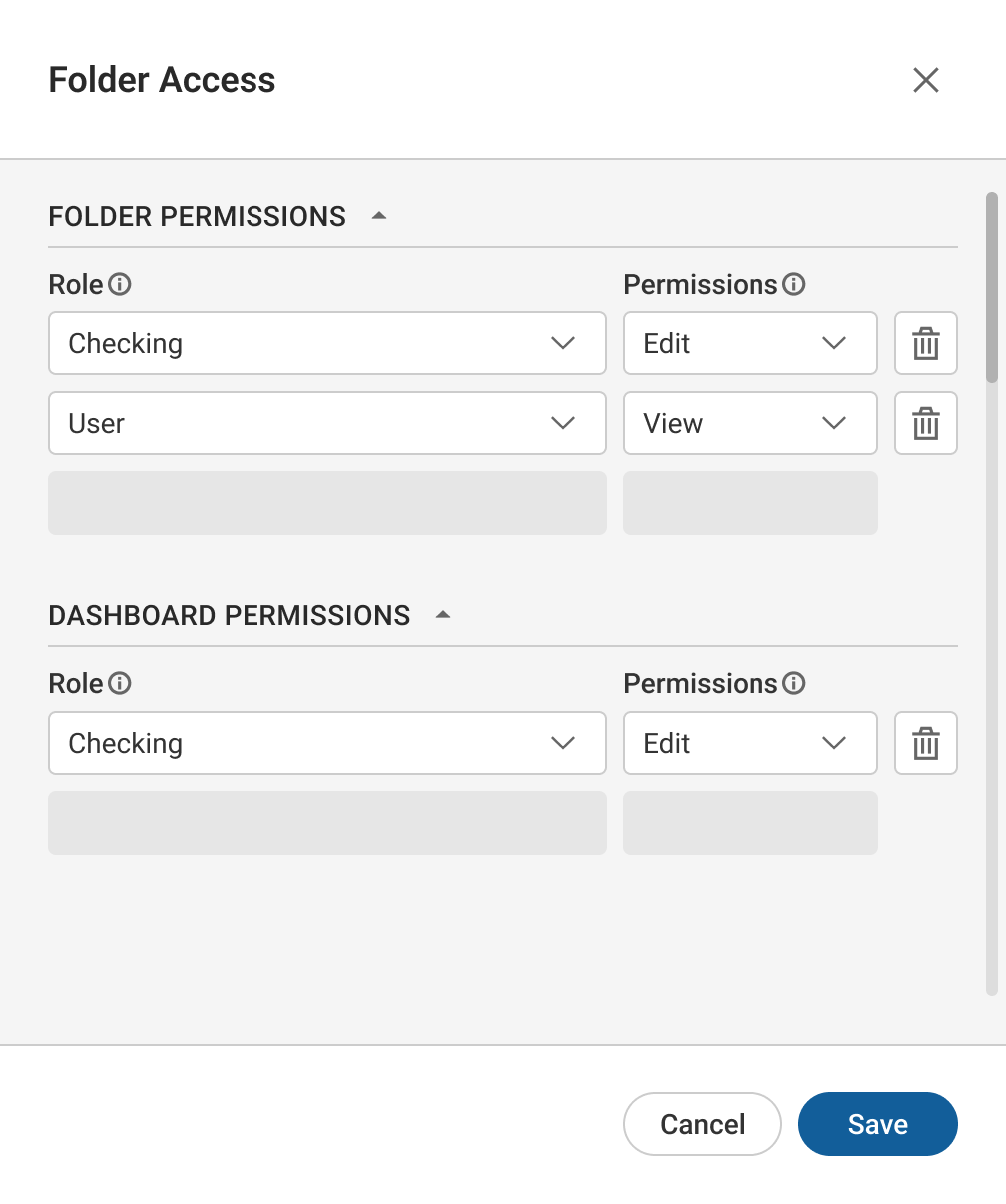
When the Assign Access option is selected for a Folder, a dialog opens allowing the user to assign access permissions for user Roles.
-
A Folder can have access permissions that govern the Dashboards in the Folder. However, such access permissions will only be effective if there are no configured access permissions directly for a Dashboard. Access permissions for a Dashboard will always have priority over access permissions set for the parent Folder.
-
For each Role there are three types of permissions relating to both Folder and Dashboard Permissions. The current user can never assign permissions to a Public Folder or Dashboard higher than what his own Role gives permissions to:
-
View - a Public Folder with View permissions for a Role allows users associated with that Role to View Dashboards in the Folder.
-
Edit - a Public Folder with Edit permissions for a Role allows users associated with that Role to Edit (and View) Dashboards in the Folder (eg. rename, customize, add/remove apps, sections, etc…).
-
Delete - a Public Folder with Delete permissions for a Role allows users associated with that Role to Delete (Edit, and View) Dashboards in the Folder.
-
Access Permissions for Public Dashboards
-
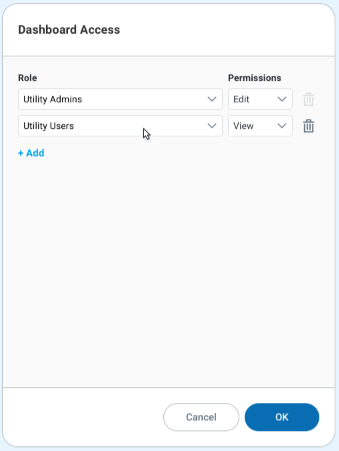
When the Assign Access option is selected for a Dashboard, a dialog opens allowing the user to assign access permissions for user Roles.
-
For each Role, there are two types of permissions:
-
View - a Public Dashboard with View permissions for a Role allows users associated with that Role to only View the Dashboards.
-
Edit - a Public Dashboard with Edit permissions for a Role allows users associated with that Role to Edit (and View) the Dashboard (eg. rename, customize, add/remove apps, sections, etc…).
-
Delete - a Public Dashboard with Delete permissions for a Role allows users associated with that Role to Delete (Edit, and View) the Dashboard.
-
-
If the user moves a Dashboard out of the Public Dashboards section, any assigned Role permissions will be removed.
Contact App Orchid | Disclaimer