
Intended audience: end-users developers
AO Easy Answers: 4.4
Overview
The results from Easy Answers queries are displayed as curated visualizations in a dashboard. However, some information may not be displayed for some users as permissions to see and/or update data may have been revoked. Permissions are Role-based, ie, different users can have a different set of permissions governing what they can see and create/update/delete depending on which Role their user account is associated with. Permissions can be applied to a number of different levels in the Ontology hierarchy and will affect which data will be shown in the Easy Answers dashboard.
Permission Levels
The following list of permissions and their levels will be assessed from the top. Only if an Ontology level permission is set to Allow, will MSO permissions be considered, and so on…
-
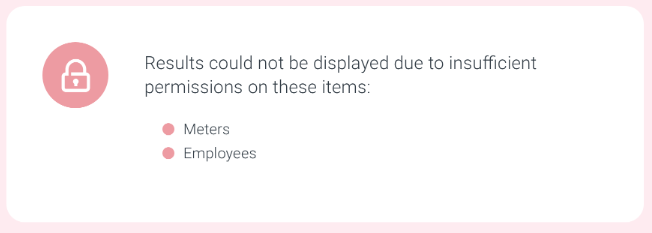
Ontology - if Ontology level permission has been set to Deny, the user will not be able to see or access any data from MSOs associated with the Ontology used. An Administrator can only allow or deny this permission level in the Admin solution. The User Notification seen below will appear.
-
MSO - if Read permission has been revoked for an MSO, no data will show up on the dashboard that is retrieved from such an MSO. Let’s say an Easy Answers query, such as “Show all meter issues,” is executed. Based on the Ontology, data will be retrieved from a number of different MSOs, including Meter Issues, Meters, Meter Issue Categories, etc… If only the Meters MSO has had its permissions revoked, only the curations showing data that specifically come from the Meters MSO will be suppressed. Other curations with data from the Meter Issues and the Meter Issue Categories MSOs will still be shown.
An MSO can have multiple types of permissions, including Create, Delete, Read, and Update. All MSOs are ultimately governed by the permissions of the Ontology they belong to. -
MSO Property - where the above MSO level permission affects all data from an MSO, an MSO Property level permission only affects a specific field in an MSO. Let’s say an Employee MSO has a Salary field. A permission could be set to only allow the Salary field to be seen if users belong to the HR or Finance Roles. All other Roles will have the Read permission of the Salary property of the Employee MSO revoked. In the case where the Salary property field permission is revoked, the Salary field will simply be suppressed from the curations in the dashboard that shows data from the Employee MSO.
An MSO Property can have multiple types of permissions, including Create, Delete, Read, and Update. -
MSO Data - if an MSO has MSO Data level permissions configured to revoke Read permissions based on the criteria: Agreement Status Equals Confidential, then users will only be able to retrieve Agreements that are not confidential. Such permission criteria impact row-level access for the MSO data. In this case, such rows matching the permission criteria will simply be suppressed.
MSO Data can have multiple types of permissions, including Create, Delete, Read, and Update.
Permission Errors - User Notifications
The following message, "Results could not be displayed due to insufficient permissions on these items: …” will be shown where no dashboard results will be shown at all due to any of the permission levels explained above.
Permissions can only be set by either the Administrator using the Admin solution or Users/Developers with access to the Ontology Composer solution. See https://docs.apporchid.com/solution-development/?contextKey=mso---security&version=latest and https://docs.apporchid.com/admin/?contextKey=admin-security&version=latest for details on how to set Ontology and MSO-related permissions for different user Roles.
System Errors
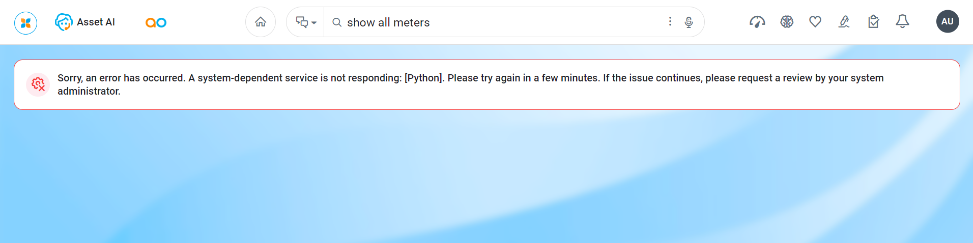
This kind of message will appear if the system has run into an unexpected system error. Typically, this is caused by one or more of the dependent services used by Easy Answers not responding in a timely manner.
Contact App Orchid | Disclaimer