
Intended audience: end-users developers
AO Easy Answers: 4.3
Overview
The Easy Answers Download Report option is found in the Dashboards Options menu as Download > Download Report.
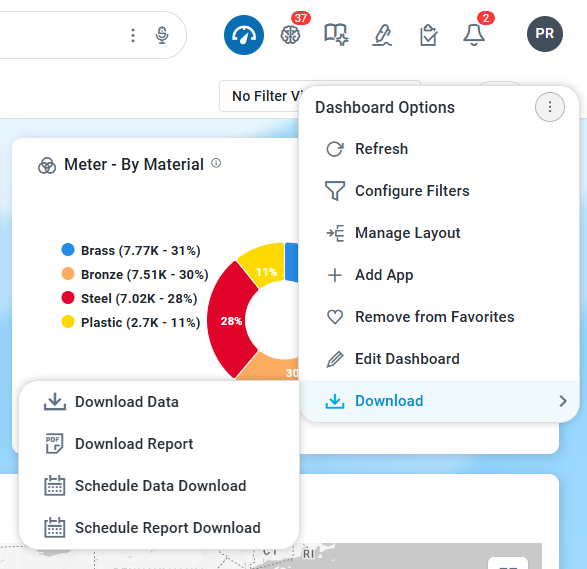
Download Report
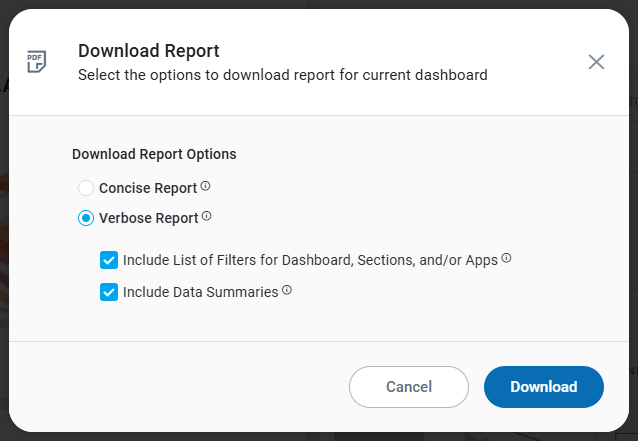
Once the item in the Options menu has been selected, the Download Report dialog opens with the following two options:
-
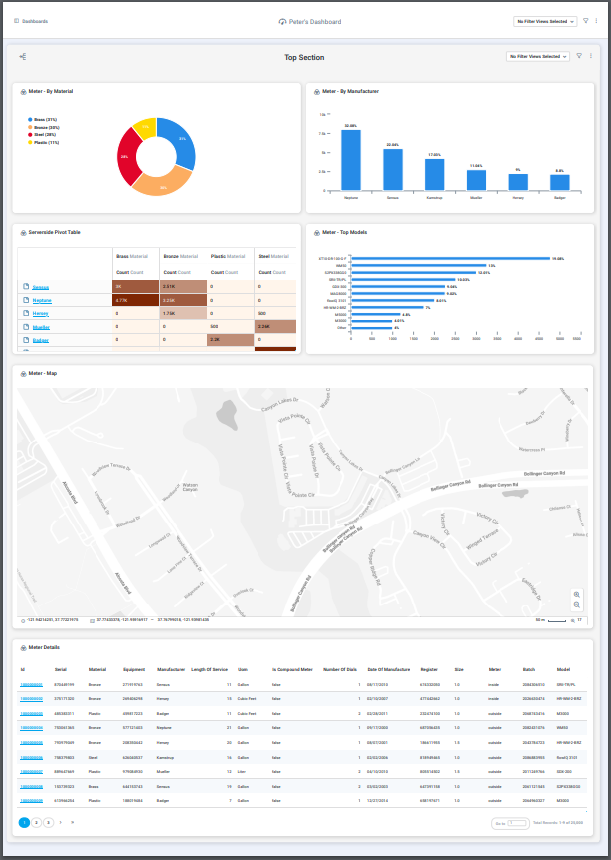
Concise Report - this produces a very concise format report based on the same layout and formatting as seen on screen. The output can be sent to a printer, a PDF format, or other formats available from the workstation’s Print options.
-
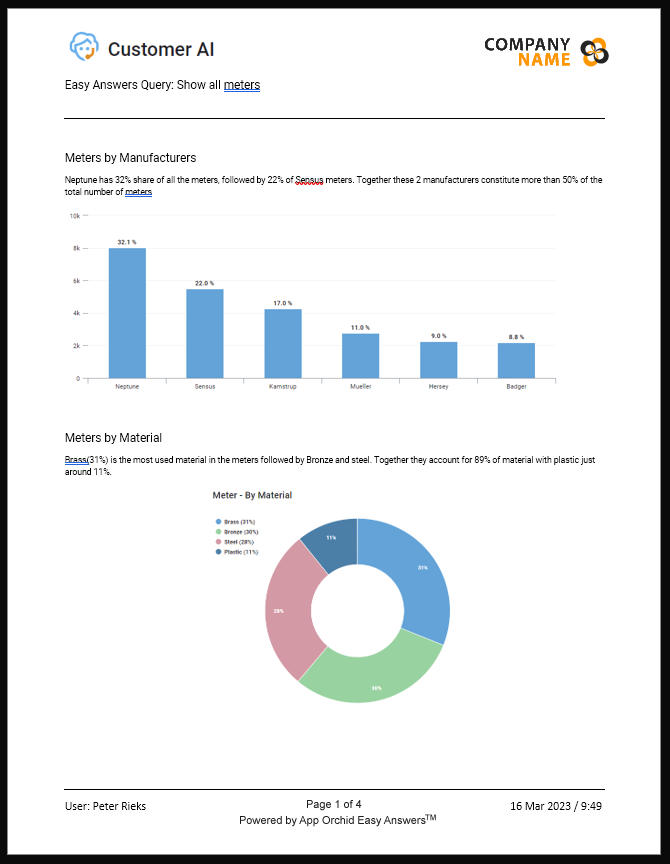
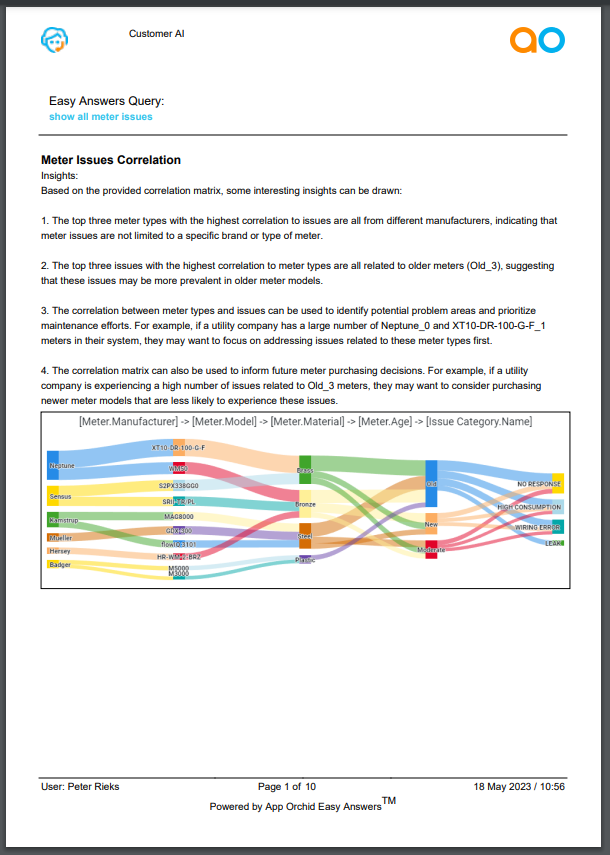
Verbose Report - this creates a PDF file in a verbose format which will be downloaded to the user’s workstation, including Header information, Sections, Apps, App Filters, and Data Summaries.
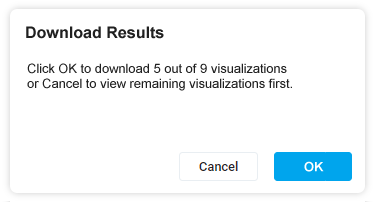
If the Easy Answers Dashboards page has been configured with virtual pagination (or progressive rendering during scrolling), and if the user hasn’t viewed all Dashboard Apps, then the following dialog appears.
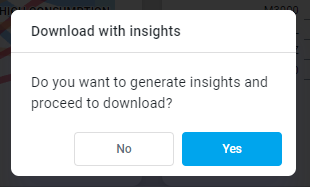
If there are Apps on the Dashboard that include Insights (from generated AI responses), then the following dialog appears.
Examples of Downloaded Reports
|
In Concise Format (as shown on screen) |
In Verbose Format (PDF output) |
|---|---|
|
|
Contact App Orchid | Disclaimer