Intended audience: users
AO Easy Answers: 4.4
Overview
Easy Answers has a Chatbot function that provides a conversation-based approach to support the user when asking questions. The Chatbot is only available in Easy Answers-enabled solutions accessible from a Chatbot icon floating in the bottom-right corner of the screen which, when clicked, will open the Chatbot panel. In case the Chatbot icon gets in the way of other content on the screen, the user can simply click-and-drag the icon to a different location.

The Chatbot
The Chatbot combines the power of the AO Platform Ontology Graph (providing the data and visualizations) with the recent advances in using Generative AI to both interpret the user questions as well as provide articulated Natural Language Responses for a much-improved user experience.
Asking a question
-
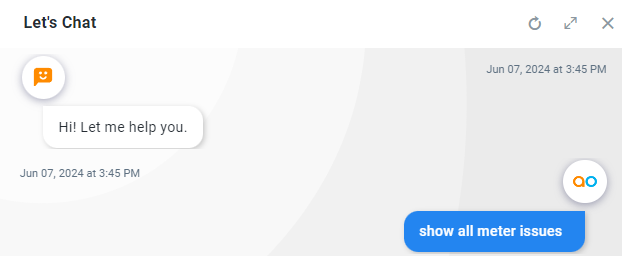
To start interacting with the Chatbot, first ask a question in Easy Answers. Once the Results page has been generated, click the Chatbot icon. The question will be transferred to the Chatbot as the first question.
-
Additional questions can now be asked in the input field at the bottom of the Chatbot panel. If a question isn’t understood, or perhaps only partially understood, the Chatbot will ask clarifying questions to try and resolve the unknown part of a question.

Answering a Clarifying Question
-
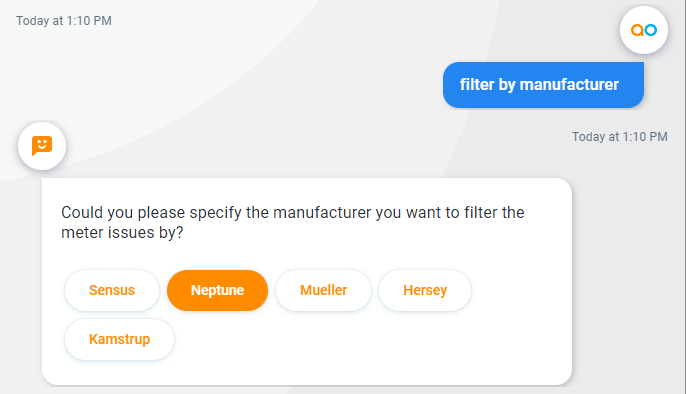
If a question is too vague or the Chatbot is missing information to respond, the Chatbot may pose a few clarifying questions. Below is an example of the user asking to “filter by manufacturer”, but no actual filter(s) have been provided. The Chatbot provides a list of available filters, and the user can select one or more filters to continue.
Replying to a Response
Options menu
-
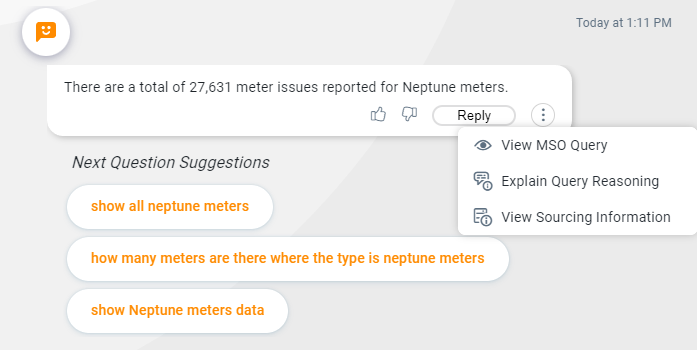
View Semantic SQL - see Viewing Semantic SQL and Adding Synonyms
-
Explain Query Reasoning - see Explaining Query Reasoning
-
View Sourcing Information - see Viewing Sourcing Information
Clicking Reply
-
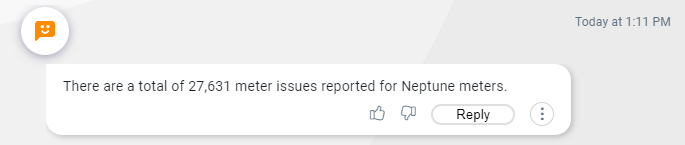
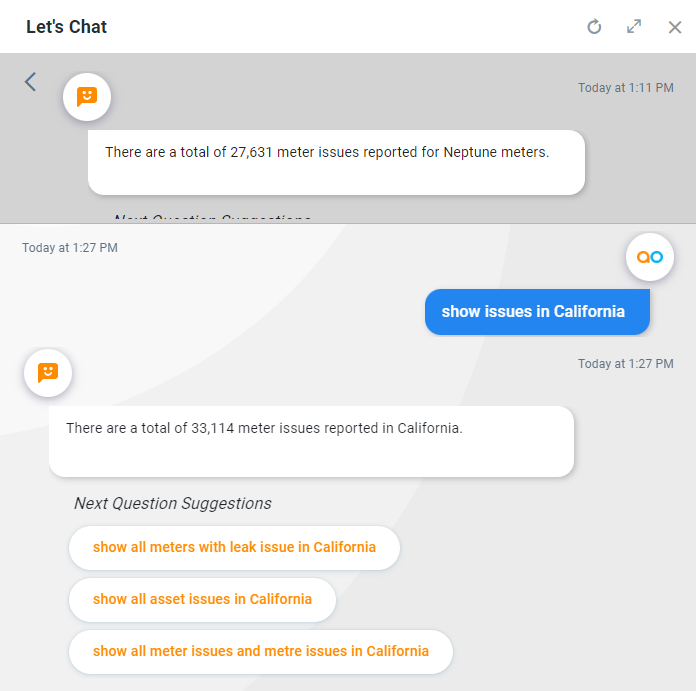
When clicking the Reply button, the Chatbot will create a conversation thread from the selected answer, allowing the user to continue asking questions in that thread. When done, the user can go back to the main Chatbot thread by using the back arrow “<“ in the top/left corner of the Chatbot panel.
Providing Sentiment
-
Thumbs Up - a simple acknowledgement will be shown at the top of the screen. This will signal to the Chatbot that the user is satisfied with the response and the Chatbot will over time, learn and optimize future responses.

-
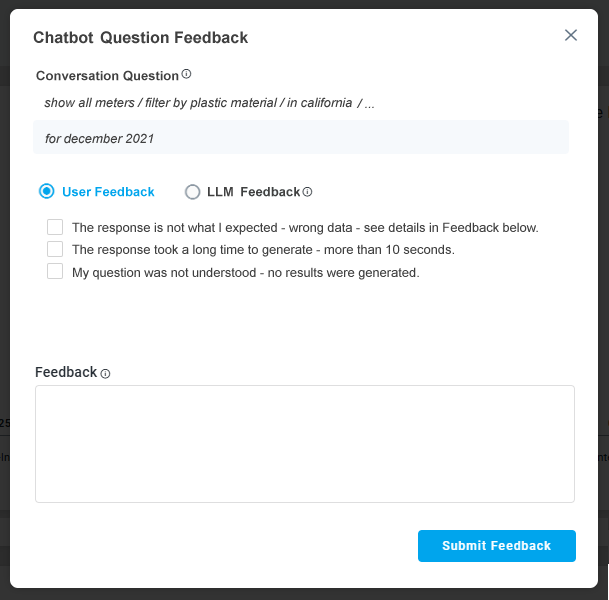
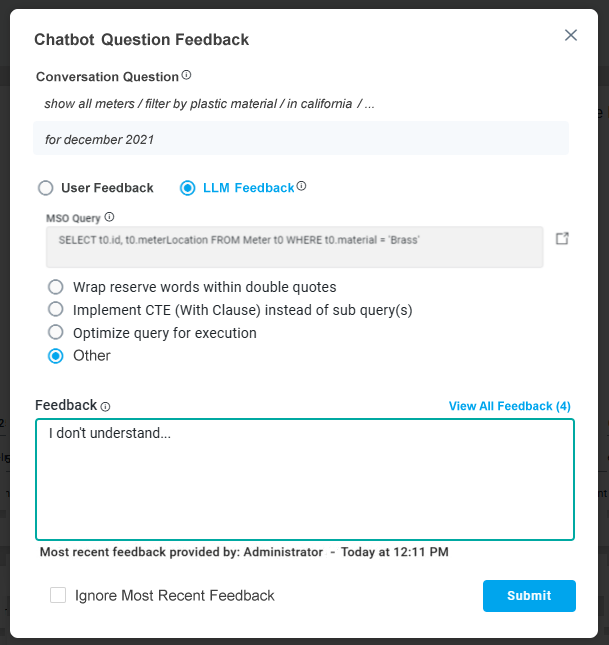
Thumbs Down - opens a dialog where the user can provide some input as to why the thumbs-down icon was clicked. Provide as much information as possible. When clicking the Submit button, the Feedback will be sent for approval (or rejection) by a “supervisor” user with additional permissions to update the Ontology to benefit future users asking the same or similar questions.
|
User Feedback |
LLM Feedback |
|---|---|
|
This radio-button option is available for simpler, non-technical feedback on the user experience about how the question was interpreted by the system and the responses provided to the question. This type of Feedback does not immediately change the question interpretation by the Large Language Model, but will be submitted for review. |
This radio-button option is available for technical users with insight into database queries and allows for Feedback to aid the system to be updated with prompt instructions, linguistics words, or other changes to allow improved interpretation of future user questions. This type of Feedback will immediately impact how a question will be interpreted by the Large Language Model, as any Feedback provided will be added to prompt instructions when the question is retried. |
|
|
Next Question Suggestions
-
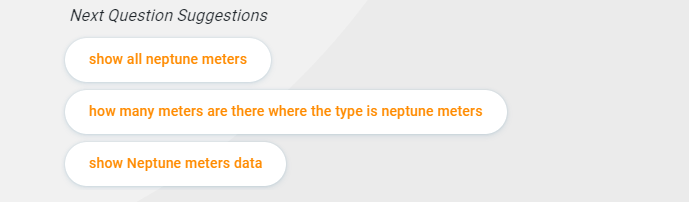
The Chatbot will often show a list of additional Questions that may be appropriate to the user. Click on a question to continue if relevant.
Video
Contact App Orchid | Disclaimer